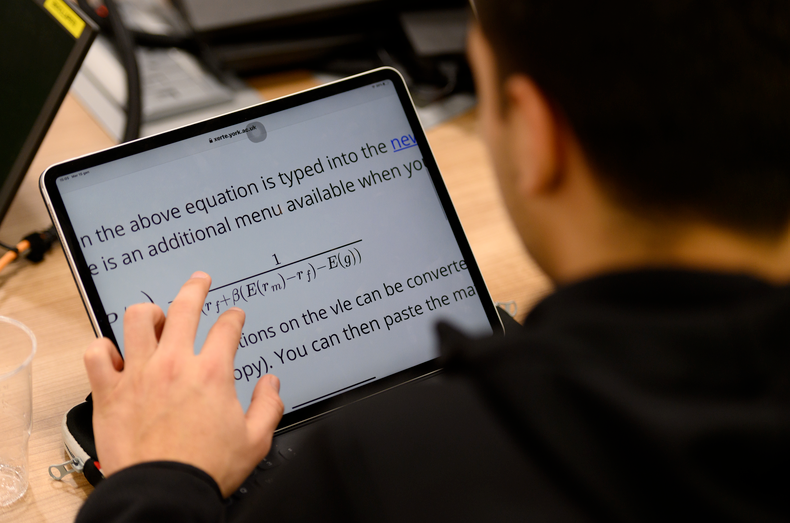
The digital accessibility conference, DigAcc25, that took place in June 2025 continues to resonate with me. This blog post is a delayed reflection on the event; by writing about it, it’s also an opportunity to review what I learned and how I intend to take any ideas forward in the year ahead.
Organised by the University of Nottingham, it’s a hybrid event allowing people to join online or in person. Various universities set up in-person events for staff to attend and once again, we were able to host a ‘goggle box’ encounter at the University of York. Many of us found coming together in person to attend an online conference to be an enjoyable and sociable event last year, and it continued to be a successful format this year. It also gives me a reason to do some baking and to share some swag from Gavin Henrick (Brickfield Education) and from Everway (formerly Texthelp). With 15 attendees, it wasn’t the most busy event, by any means, but it was still a great opportunity for CPD for those who attended. We were blessed to have several students (and a past student!) join us for a rich lunch time discussion.
Running this for the second time meant it was easier to organise as we could simply duplicate local sign up forms, promotion campaigns, room and AV organisation etc. However, the event happens at a busy time for academics who are marking to deadlines. This does limit engagement somewhat on the day. I’d be interested in finding out how other universities managed to get more academics involved in their event. One idea I have is to ask colleagues to submit papers for the event which may encourage others to sign up and attend at least one or two sessions.
I was personally more drawn to any sessions that were being presented by academics as their accessible practice was something I wanted to share with colleagues. Cerian Brewer (Uni of Nottingham) did a great job explaining why she decided to adopt more accessible and digital practices to help all students in her Maths module. Likewise Robert Barham (Uni of Leeds) shared a specific workflow to output accessible formats from LaTeX using BookML. Many of us found it a pity that the Maths and STEM sessions weren’t all grouped together so those who were interested in the topic were able to sit in one room together for a whole session. Perhaps it’s something Nottingham will consider next year in the organising of the event?
Another topic that drew my interest was Isabella Henman (The Open University) talking about Co-designing workshops with neurodiverse students. With my Distractibles hat on, I found myself drawn to the keyword ‘neurodiverse’. It made me realise how important it was to have the right keywords in the title of someone’s session, making it easier to find the topics you wanted to see. Again, if sessions were grouped together by theme, it would take the pain out of figuring out which room to go to for the specific session you wanted to view. Colleagues found having to sit through ‘strategy’ sessions less meaningful if they weren’t involved in this work. I know I can sell a 1.5 hour session to academic colleagues more easily if they know they were going to get insights from multiple speakers on a topic of interest!
Our lunchtime discussion was the highlight of the day as it allowed us to regroup and consider how digital accessibility was progressing at the University. We acknowledged that there was signficant progress in some departments while others were lagging behind. A programme leader commented on how we needed to provide more support for the managers having difficult conversations with academics on the standard of their resources. We felt the European Accessibility Act provided another opportunity to raise the profile of digital accessibility at the Uni. In terms of feedback for the conference format, everyone enjoyed spending the time together but wanted sessions to be based on topics and have more student representation. We also wanted more realistic representations on challenges and issues rather than just hearing about successes.
When I reflect on what I wrote about last year’s DigAcc24 conference and what actions we hoped to take forward, we’ve made great progress on creating the infrastructure for procuring accessible systems, including the development of personas to bring to life the issues disabled staff and students can face. We’ve also made progress on supporting staff to create accessible documents. However, the current climate does make it difficult to engage academics in discussions to change their practice when they have been faced with redundancies and other cut backs. We are lucky to have some very dedicated staff we can work with to encourage greater adoption of accessible practices. We just have to keep on amplifying their good work and continuing to use student voice as much as possible.
So optimistically, here are some actions for me to consider, following this year’s DigAcc25:
Catch up with more of the recordings and share with colleagues who I believe will benefit, especially the Accessible Maths sessions. Organise an internal meeting of the accessible maths working group to consider further actions.
Follow up with colleagues who are in the procurement process to see how the audit training has helped them. Collate stories to share.
At our e-accessibility working group, discuss how we provide more support for managers trying to raise the standard of their team’s resources.
Encourage colleagues and students to deliver sessions at DigAcc26.
A big thank you to the staff and students who volunteered to help with the day. It was much appreciated and made the day flow very smoothly. See you next year!
“Who watches the watchmen?” is a famous question. Less well known but also worth considering is “How accessible is accessibility training?”. To improve digital accessibility in society, we need as many people as possible to engage positively with training and adopt more inclusive habits and accessible practice. Therefore accessibility training needs to be accessible in the widest sense of the word – not just in terms of accessible materials and formats, but engaging content which makes the user feel able to adopt better practice and apply this to their work. It needs to feel achievable and relevant, to help persuade people to improve the accessibility of their digital practice. But how to achieve this?
Over the last two years, I’ve worked with a colleague from the Academic and Digital Skills team, the staff digital skills training lead, to co-create and deliver a programme of digital accessibility training at the University of York. Prior to this, Lilian Joy delivered the Accessible Documents training online on a monthly basis for 3 years. Before that, our training was face to face in computer labs! We’ve trained over 2000 staff over the years on creating accessible documents. In this blog post, I explain the approach we’ve taken with Digital Accessibility staff training, looking at the challenges this type of online training presents and how we’ve tried to address these.
General challenges to staff training
Although there are challenges specific to accessibility training, there are some general challenges applicable to most (if not all) staff digital training to contend with in Higher Education.
The first two of these are heavily linked – time and workload. Finding time to attend training is a persistent problem – it can be difficult to prioritise professional development when you struggle for time to complete more pressing tasks. Short term demands can block long term development. This situation is becoming more pronounced for colleagues across Higher Education institutions across the UK, as cuts to the sector and efforts to save costs see a reduction in staffing for many teams and departments. For many staff, this has seen increased workload or taking on new roles, which can make setting aside time to attend training more difficult. There is a mandatory digital accessibility training package (completed by over 4000 staff annually), but all training sessions beyond this are optional. They are encouraged by some line managers and recommended for roles where a computer is used, but the sessions we provide need to be something that staff see as manageable whilst time-poor and something they can fit into what may already be a stretched workload.
The next challenge is the range of digital systems used at the University of York – a problem also faced in other institutions. Whilst the range of different roles, types of teaching and areas of research at the university is exciting, the number of different pieces of software and platform used to achieve this presents a challenge to offering digital training. Even when approaching something relatively generic, as a minimum we need to cover two workspaces, Microsoft Office and Google Workspace. Having to duplicate information for the same tasks across multiple tools and platforms makes any training lengthier.
In planning any training, there is a tension between “light touch” and “heavy duty” approaches. Which is the better approach? It’s hard to say – and you can get criticised for either! Keeping it light helps keep sessions shorter, more manageable and less daunting, but may not provide enough depth for everyone’s needs. More detailed sessions cover more material and will likely meet more needs of a wider audience, but you risk some attendees zoning out as they feel sections don’t apply to them. It can feel more challenging to the attendee with more to remember and typically it would be longer, presenting more of a challenge in finding time to attend a longer session. Essentially, this can come down to the questions, “Does everyone need to know everything? Or can information be broken down and split across smaller, more focused sessions?”. The type of approach may dictate the length of the session, but with either approach, there are also other considerations in organising training. How often will training run and what staffing is needed for that? What resources will be needed to support taught content? What format will these take and where will they be kept? These all need consideration when developing new training.
Specific challenges to accessibility training
There are some specific challenges to accessibility training, most about overcoming popular misconceptions about digital accessibility and accessibility more widely. Whilst making training feel relevant to attendees is important for any topic, it is often a particular issue in accessibility training. There are widespread perceptions that the need for accessible formats only concerns a few people, that accessibility only encompasses some very specific forms of accommodations, that it doesn’t apply to their role. As such, it’s important to make it clear how it can benefit everyone and demonstrate the relevance of content. There is also a tendency for people to view accessibility as an afterthought, as extra work on top of their existing tasks, which is also important to dispel when running digital accessibility training. Similarly, accessible practice can be perceived as difficult, so again promoting how accessible habits can be easily adopted is important, so attendees feel confident in making their work more accessible, rather than daunted by the perceived difficulty of the task.
The common perception of accessibility as extra work rather than a necessary part of the work process presents another potential issue. Is it right to have accessibility training as separate? People often feel confident in other areas of their work but want specific guidance on accessibility – understandably they do not want to go through a whole topic again to check that their practice is accessible. On the other hand, by having separate targeted sessions on accessibility, do we risk perpetuating the view of accessibility as somehow separate? We’ve tried to take a dual approach to this. We do offer focused accessibility training sessions, so otherwise digitally confident staff wanting just to focus on improving their accessible skills set can do so, but accessibility is built in throughout the digital training offer. The digital skills team ensures that accessibility features are covered in all their training sessions. So for example, if you attend training on creating academic documents, you will have the importance of heading styles explained and accessibility checkers promoted to you. If you attend the training on creating presentations, issues around contrast, readability and so on will be covered in slide design, tips about accessible screen sharing and use of live captions are given in the discussion of presenting your materials. The VLE team, likewise, have built accessibility information into their training sessions and their guides and site templates. This approach means that accessibility is taught and presented as an inherent part of the digital creation process and workflows. This dual approach means that anyone undertaking training is shown accessibility as a standard part of the digital process, but those concerned specifically about accessibility can attend standalone sessions or access specific resources to enable them to more quickly find the accessibility information they need.
The Bitesize style and branding of training sessions was developed collaboratively by members of the digital skills team. Training is delivered in the form of concentrated 1 hour sessions filled with direct content featuring lots of live demos and Q&A. The training sessions move quickly but are recorded, for any staff who want to attend but are unable to, as well as to enable attendees to recap and consolidate as needed. The taught component is also supported by online resources and comprehensive guides to further learning available on the Skills Guides and Practical Guides. This concentrated style allows the sessions to be kept to a maximum of an hour of taught content, which is more manageable for staff to attend than longer sessions. This has been a successful approach, with the Staff Bitesize sessions becoming a recognisable program and sub brand within the university.
The sessions are also consciously designed to be accessible. Captions are made available, for the online sessions, cameras are never required to be switched on, all materials are shared after the session so participants can focus on the content and not worry about note taking and we can provide alternative formats if needed.
We decided to introduce digital accessibility sessions as part of this, beginning with the Creating Accessible Documents session. This enabled us to tap into the established nature and platform of the Staff Bitesize progressions, using a familiar format with existing channels for promotion. Following positive feedback, we’ve since added a Creating Accessible Presentations session and a Google Sites session, which combines the practicalities of building a Google site with advice on how to do so with accessibility in mind and introducing accessibility statements. We’re also trialling Reading Lists training in this format, again combining the practicalities of using a system with information about using it accessibly.
As mentioned in the discussion of the challenges of creating this training, there are a lot of popular perceptions about accessibility and finding the right tone for the training is critical in tackling these. This is especially important when delivering digital skills training to a mixed audience, where not all attendees are digitally confident. As such, it’s important to adopt an engaging and relaxed approach – although arguably that is true for delivering most training!
But in an area where people are often concerned about whether they are doing the right thing or feel embarrassed about not knowing, creating a “digital amnesty” kind of atmosphere where attendees feel comfortable asking any questions is important. As the sessions run very content packed, we encourage questions via the text chat through the taught part of the session, to help create a clean recording, but after stopping the recording, we welcome any questions and also give contact details for any follow up questions. This enables attendees to ask questions without any concern they will be recorded, as well as giving the option to ask questions outside the session altogether, if preferred. These training sessions are supplemented by Accessible Document meetups run every couple of months to allow people to consolidate their learning and ask questions specific to their area of work.
People who haven’t thought about accessibility before are often aware they may not have been working accessibly or are worried they haven’t been – there is also a belief that accessibility training is effectively going to be a session of nagging and telling off, focused on what people should not be doing and things they must stop. To counter this, we try to create a reassuring atmosphere and avoid being too didactic, offering practical suggestions and giving examples of things that can be easily adjusted and adopted. Although there are a few hardline do’s and don’t’s, we make sure there is no punitive tone and encourage people to have a go, rather than fear getting it wrong. This is really important to encourage people to implement the content covered and also to help with their accessibility journey more generally. Nobody wants to feel nagged – and if someone feels attacked for previous behaviour or mistakes made, they’re less likely to engage positively. If we create a positive experience where attendees are shown ways they can improve practice and they feel good about that, they are more likely to put these things into practice, share this knowledge with their peers and be more positive about attending further accessibility training, either to go into greater depth or to cover accessible practice in other areas. I’m aware this passage makes it sound very calculated – although there is strategy behind this approach, more broadly we want people to enjoy and feel good about attending our training sessions just because that’s nice!
Resources
Besides the training sessions themselves, there is the host of content designed to support these – as well as being usable as stand alone resources for those who have not attended the training. As mentioned before, the sessions are recorded. The recording is then shared with all staff who signed up to the session – so staff who are interested but cannot attend can sign up and receive the recording and materials after the session, whilst staff who attended have the recording to back through as a resource if needed. As the university is a Google institution, for sessions with slides, Google slides are used throughout the digital skills training program (although some sessions are taught entirely from live demonstrations and don’t have a supporting slide deck). Google slides are easily shared with colleagues, can be accessibly designed and can be easily downloaded and converted by users if required. We send the link to the slides to all who signed up after the session, along with the recording. My colleague edits the recordings to have chapters, making it easier for staff returning to the resource to find the section they need, making this a practical and accessible resource. Given the varied demands on staff of different schedules and teaching commitments, having recordings and other resources which can be accessed asynchronously is really important, as well as being more inclusive for any staff working weekend shifts trying to engage with training opportunities. The basis of our resources is the Digital Accessibility Practical Guide. This is part of a range of Skills Guides offered by the Academic and Digital Skills team, all of which are built in the Springshare LibGuides platform. This enabled us to tap into the established platform of Skills Guides at York, as well as this providing us with an open access and easily editable web presence for guidance and resources.
The guide is then divided into topic sections for users to find what they need more easily. We use the guide to offer overviews and guidance for each topic, as well as having the slides used in the training sessions. We also include any relevant links and any existing templates. We try to add easy starting points for accessibility for each topic, by creating checklists and top tips, to help users start adopting accessible habits without feeling daunted. For the more complex task of creating a Google site and the accessibility statement for it, we offer a checklist and a template statement, to offer more support for what can seem an intimidating undertaking. We’ve also created a Digital Accessibility at University of York A-Z, in the form of a Google doc. This partly acts as a glossary, partly as a directory of useful links and contacts for all kinds of accessibility support at the University of York. It’s currently in the form of a Google Doc – not the shiniest of solutions, but it’s something we can very quickly edit as terminology, tools and services change, so it’s easy to keep it accurate and up to date.
Besides the Skills Guide, we’re also trying to improve general awareness of digital accessibility and digital skills training across the university through the use of Slack. Slack is a digital messaging tool used in many businesses and institutions, which allows for the creation of channels for particular groups or interests. As well as using Slack channels as a way to promote training and resources to staff, we use the digital accessibility Slack channel at York as a means of encouraging staff to seek community support and ask questions around the creation of digitally accessible materials. Slack has been in use amongst some professional services teams for some years, although its adoption by academic departments has been more recent, with many academic staff still not really using the platform. Consequently the reach is better to professional than academic staff, but overall use of the platform is increasing, so we hope it becomes a useful space for more staff.
We’re looking at how we promote the training to different staff groups. The uptake is stronger amongst professional services staff (although this is true not just for digital accessibility training but digital skills training as a whole), so we need to consider how to reach more academic staff and how to encourage them to attend. Amongst academic staff, we have more engagement from teaching staff than researchers, so again, that’s another group we need to try to work with more. We’re trying promoting the training in different places to try to improve this and reviewing how we advertise it to different groups. We don’t have an answer yet but it’s something we’re trying to address!
What’s next?
The positive feedback we’ve received from the training suggests the Bitesize approach is a good one, so we’re keen to expand our offer. However, given the size of the training offer and the need to repeat each session at least once through the academic year, we’re having to temper this enthusiasm with making sure we don’t overextend ourselves and offer more than we can deliver. As part of our feedback form, we ask staff what else they would like to see training on – there has been an interest in web content and social media, so we’re looking at how we can develop a bitesize session around that as our next addition to the digital accessibility training offer. We’re pleased with the feedback so far and hope to build on this with more sessions.
Working collaboratively with departments and teams and supporting them to create and deliver their own bespoke training sessions is one way to build capacity that is distributed and more sustainable. It can help for various disciplines or teams to run their own training sessions to meet their needs as has been the case with the students’ union, online tutors and various departments. Specific training may also be needed for teams like Communications or Systems Developers and often the best trainers can be found from within the team itself if specialist knowledge of software or coding is required. Additional workshops that are co-produced with students on specific needs are also proving popular with staff and put the lived experience of disabled students front and center in accessibility training. Lastly, user research has proved invaluable as a means for staff to engage directly with the challenges students can face when things are not accessible for them. No doubt there are other ways to make accessibility training more motivating, inspirating and accessible to more people and we hope to hear in the comments if there are ideas we ought to try.
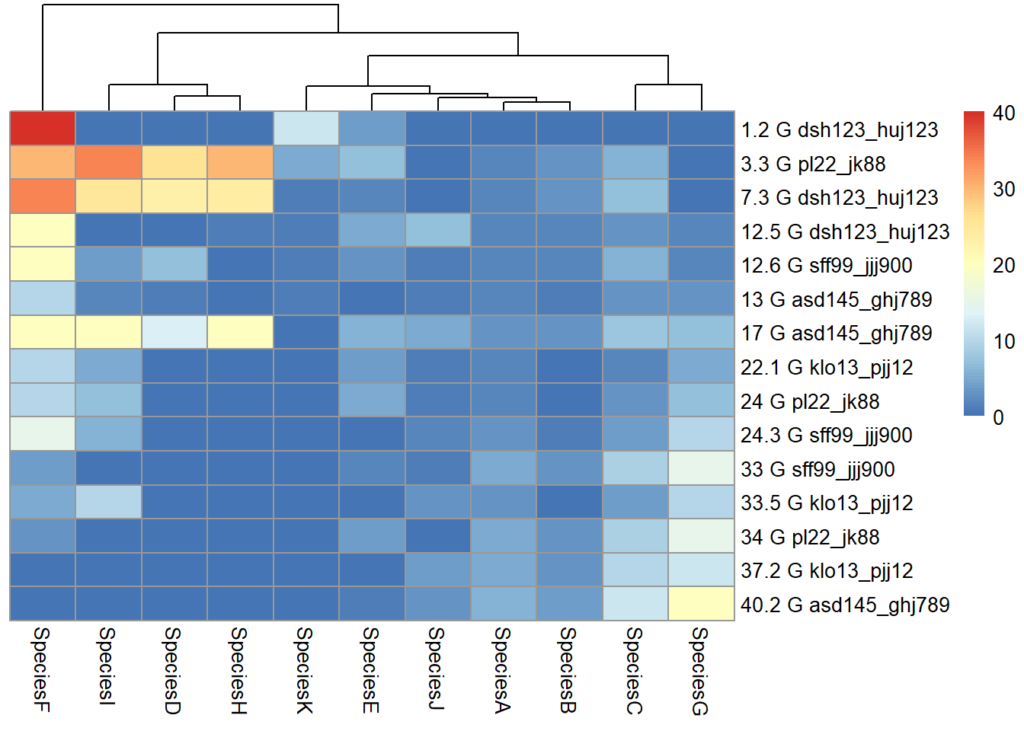
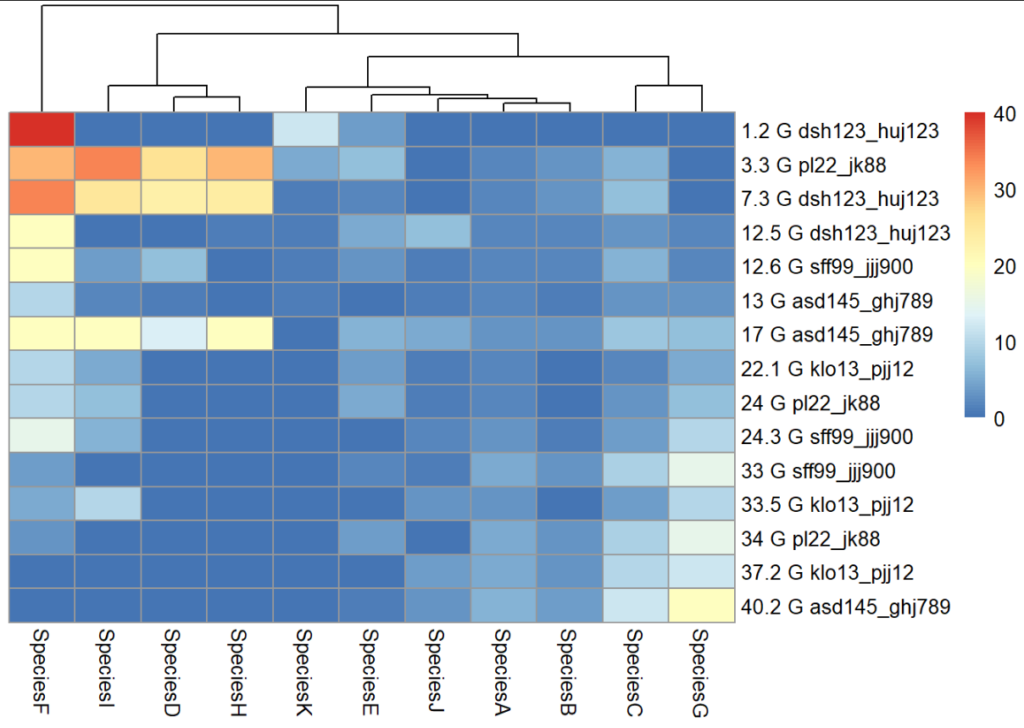
Tactile resources are useful to supplement the digital versions of resources, enabling a student to use multiple senses to understand the data, patterns and connections. In Part 1 of our Tactile Graphics blog series, I was just starting to tackle the heatmap resource shown below. Lots of digital tools are good at providing data through cell by cell access, but for an overview of the pattern, including the dendrograms at the top, it’s harder to convey with just one medium alone.
Heatmap example
Fig A. Heatmap supplied by the lecturer.
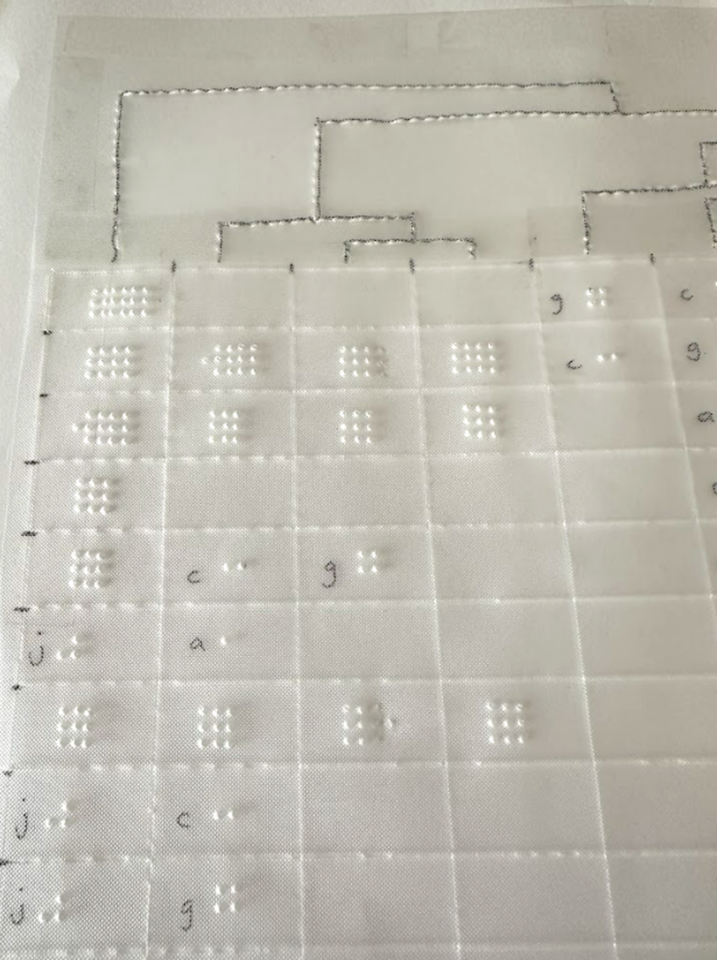
Nothing beats a tactile for a sensory overview – it works in a similar way to a visual. Even if you can explore the data accessibly and digitally (and an Excel sheet coded up with a numerical scale might be just as effective for encoding ‘colour’ information), nothing beats being able to sweep your hand across to get an overview, then narrowing in on patterns or clusters by column or row, then thinking in terms of quadrants, which in this case may be helpful eg top left quadrant has a cluster of cells with a lot more red than top right quadrant), or even in 3×3 grid format so that the data can be discussed or written up in an analytical fashion.
Fig B. Tactile version of the heatmap.
So what was my thought process in making the tactile version of the heatmap?
First, I ‘upgraded’ my process to stick the film and labels directly on a sheet of A3 paper. Rather than a thin strip holding two A4 plastic films together (see Part 1), the A3 paper provides a more stable base for the entire resource. I can more easily write in pen on paper directly than on plastic film. This means I can quickly write the information I need for any sighted helpers using the resource with the student. Moreover, the braille labels are less likely to fall off paper than film. However, I would still recommend using double-sided sticky tape if possible. I conquered the curliness of the braille tape with one more step – I straightened out the curly braille tape by ‘scoring’ it – the opposite of what you would do to make ribbon curly. Doing it the opposite way meant I could make the tape stay relatively straight rather than curling up on itself. If you miss this step, the braille labels will try to curl the paper!
Fig C. Curly braille tape being straightened with a metal ruler to produce a relatively straight bit of tape.
My next step was to work out a key to represent the temperature variance. Fig D. isn’t exactly the same heatmap but shows how I had to work out the various shades of blue to red to decide how they would be indicated in braille dots. A heatmap can also be problematic for those with Colour Vision Deficiency. Indicating the areas with simple numbers might be a useful way to differentiate the areas apart. I had trouble telling apart some of the blues and had to go through a very thorough process of comparing the tones cell by cell and numbering them to help me make the tactile!
Fig D. Another heatmap with numbers used to indicate the colour gradient.
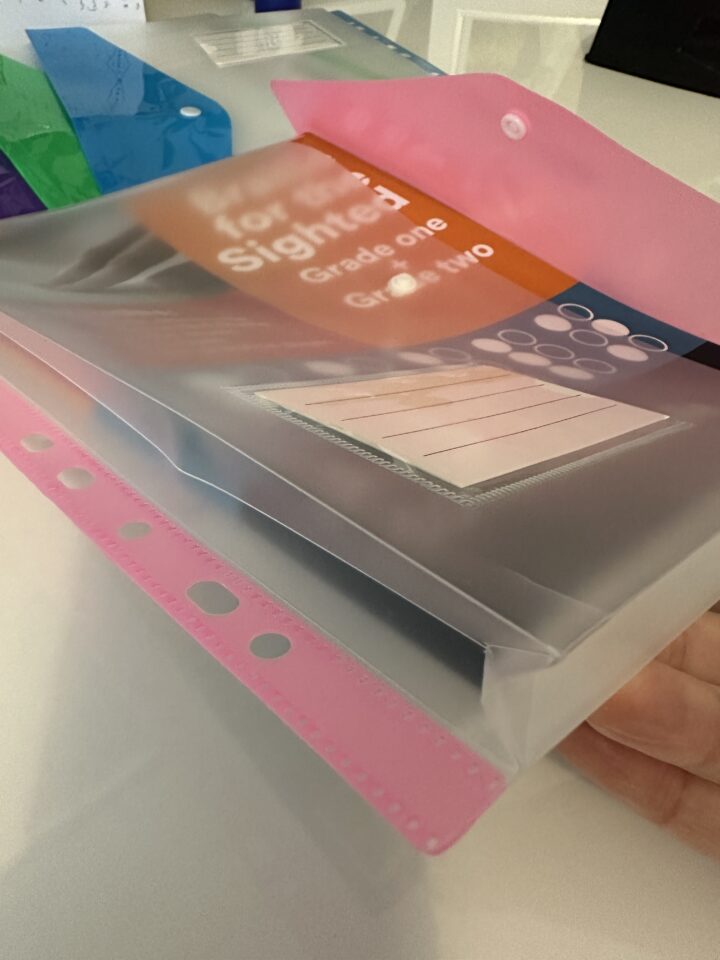
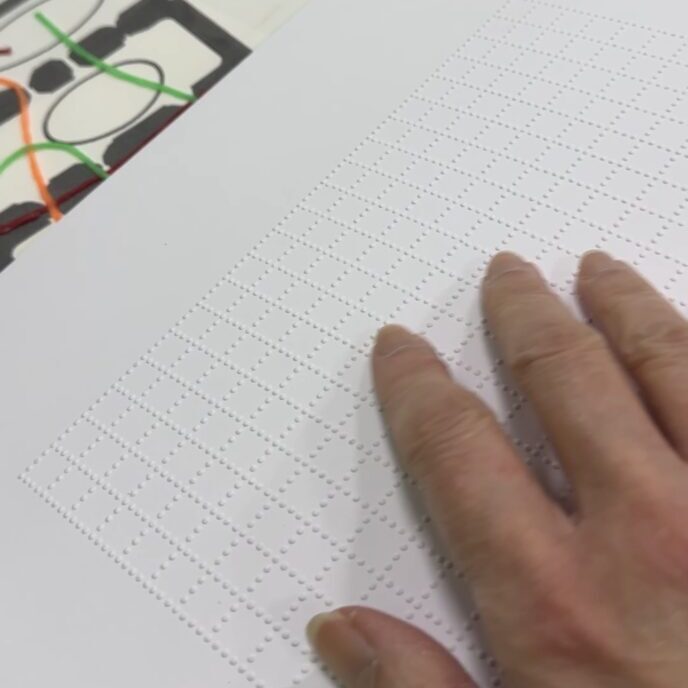
Initially I thought to use braille letters to indicate levels of colour, but this soon became unrealistic. 0-9 is indicated by a permutation of 4 dots. The letter a is dot 1. After that you would need two cells to indicate something like 11. However, 11 would feel like the letter c, which is also made of two dots. I soon gave up on this method and went for grids of dots to indicate how high up the scale the temperature was so rather than ‘reading’ the grid, it would be a more rough and ready sensory resource, where no dots would indicate a cold cell and lots of dots meant a hot cell.
Fig E. Using rows of dots to indicate higher temperatures.
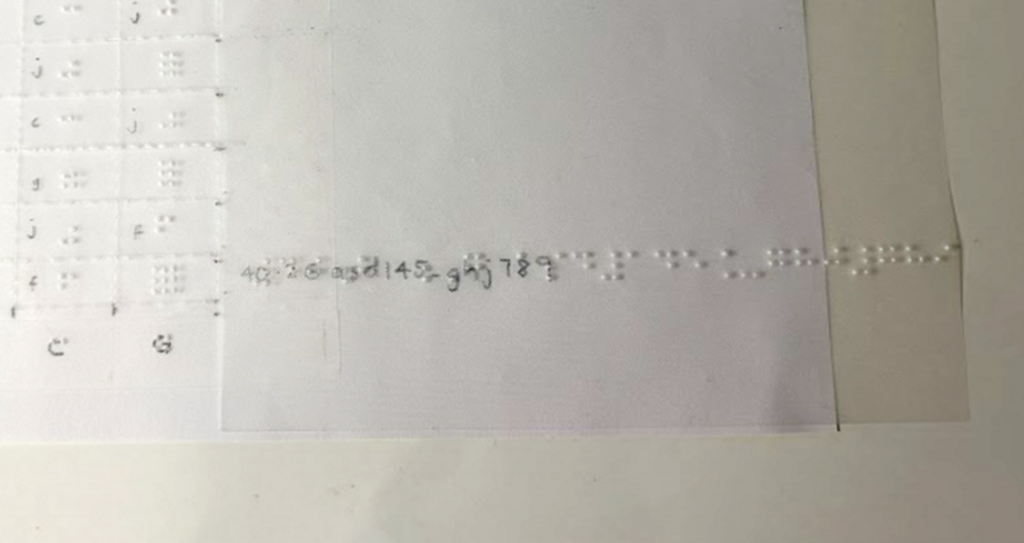
The labels for each row had a number and letter string, for example, 40.2 G asd145_ghj789. I found the characters for each row too long to fit into the tactile, as shown in Fig F. It’s also not necessarily helpful to have the whole long string. The difference between 40.2 G asd145_ghj789, 17 G asd145_ghj789 and 13 G asd145_ghj789, is simply in the first numerical characters before the letter G. Rather than making the student read a whole string of characters after the letter G, I opted to only put the first 2 to 3 characters eg 40.2 G asd. The longer characters could be put into a legend if it was necessary to do so.
Fig F. The braille for the row labels proved too long.
Narration
Another thing I added to the heatmap for the student was an RFID sticker to use with a Penfriend.
Fig G. Penfriend and RFID stickers.
With the RFID stickers, the student’s helper or tutor can help to record a narration about the heatmap on the PenFriend that she can go back to anytime she wants to explore this. She can play back the recording while exploring the map with her fingers. This helps with aligning words to ‘pictures’ and avoids overloading one channel for cognitive processing (Mayer & Moreno, 2003). The graphic should be described from ‘general to specific’ (Image Description Guidelines, 2015), giving the student a chance to gain an overall perspective of key traits before drilling down to more detail. Detail can be described in segments, starting with the top left quadrant and working clockwise, for instance. This is a good way to emulate how you might want data described back to you so you can discern if the learner has understood things correctly.
Although these RFID stickers are a great idea, it can be hard to tell they are even there when they are stuck down! To help her detect the presence of the sticker, I recycled some screw hole cover stickers that were languishing in a stationary cupboard – these were thick enough to be easily perceivable and when added to top right of the resource, they provided a clear indicator that there was an RFID label on the graphic and she could point her Penfriend to it to hear more about the heatmap. Gem stickers or anything slightly 3d would have been equally good, but the screw hole cover stickers were a good fit as they were much flatter, stiffer and stickier than gem stickers would be. However, gem stickers do add a bit of bling to the resource so choose whatever works for you and your student!
Fig H. Gem stickers.
Art and craft
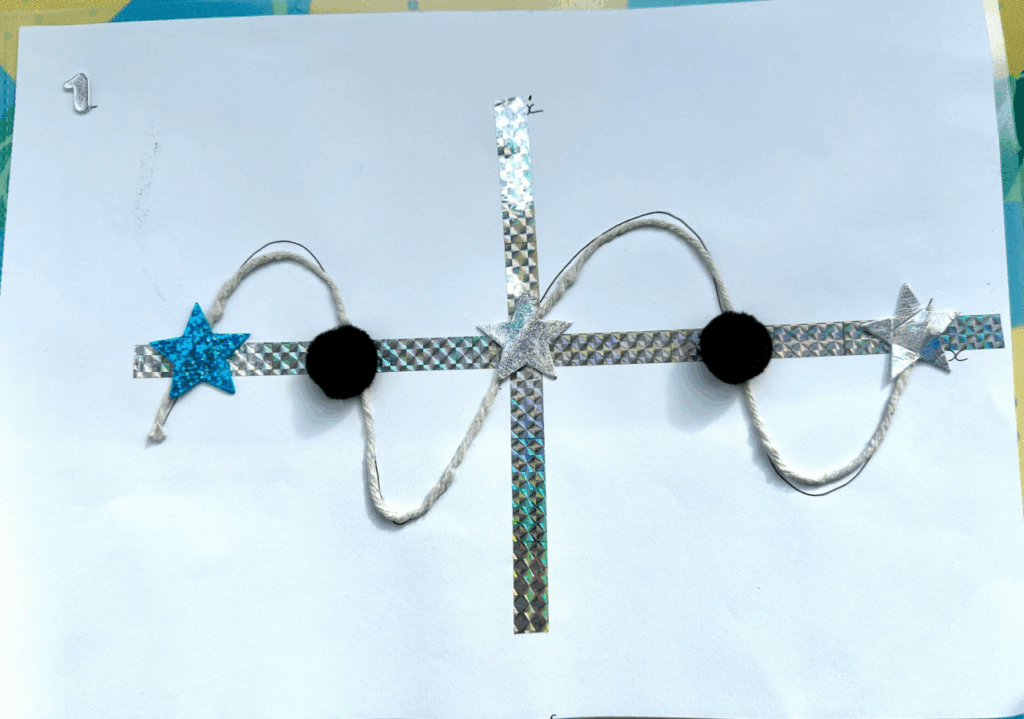
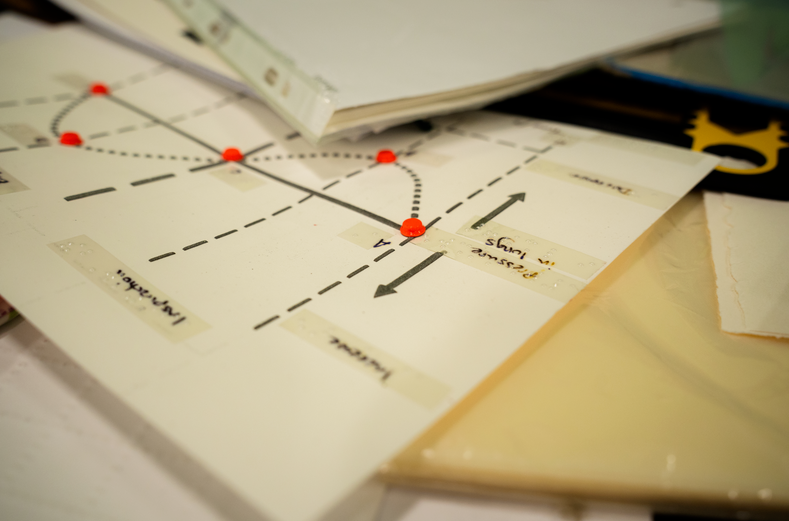
Don’t be put off by how much skill it might take to create some of these tactile resources; anything you can make to bring additional information to life is appreciated. Fig I shows a quick outline map created by the tutor to explain to the student how the outdoor sampling was going to happen. Various areas on a slope were indicated by pasting kitchen roll and paper straw wrappers on a sheet of paper to help with ‘visualising’ what was going to happen. The student was so impressed by the effort made by her tutor that she kept these to inspire others who might be making things for her. Every little bit of effort we can make is appreciated and goes a long way!
Fig I. Outline map of areas being sampled made with kitchen roll and straw wrappers.
As Alice mentioned in Part 2, do bear in mind that any tactile resource should be used in context and in conjunction with a learning opportunity. Some items are less useful as an independent learning resource, especially if there hasn’t been an explanation of how to navigate the resource and what to expect on a page. After an initial introduction, they can be very helpful, especially when supplemented with audio via the Penfriend, or while the actual data is being interrogated digitally with a screen reader. Tactile resources may be more familiar for students who studied braille than students who lost their sight more recently.
One more thing to bear in mind is whether your learner has any aversions to certain textures. This is going to be useful to know in advance rather than spending too much time creating a resource only to find it’s not usable by the student.
Going digital
As I looked for more resources around accessible heatmaps, I came across an MIT open source library called Olli. This converts visualisations into keyboard-navigable tree structures of information, allowing a user to drill down at varying levels. (The MIT Visualisation Group has several publications that are worth a look.)
Although this is the kind of work that is absolutely essential and so useful for making information accessible to all, learning isn’t just about absorbing information; it’s about interacting with, creating and evaluating as well. As Natalie Curran, one of the co-authors of An Accessible Maths Journey, said to me, students want to do more than just passively receive information. They need to be able to make notes, see what happens when they change something, make their own versions and interpret those results and so on. They need to have the agency and the means to run their own investigations and we need to find ways to enable this.
One of our upcoming blog posts will delve into our VI student’s journey into learning RStudio with the BrailleR package. RStudio is widely used at the University for data analysis and visualisation. Adding the BrailleR package means that the outputs are made accessible to screen readers and braille users, and we’re finding it also makes for a great accessibility checker for anyone using RStudio to generate charts and graphs. By learning to code, our student is able to run their own interpretations and analysis of the data. Having a foundational understanding of what boxplots and heatmaps look like helps her to understand what she is generating. I don’t expect to have to create multiple heatmaps or tactile graphs for this student in the future, now that the foundation has been laid for her interpretation of the digital data. As she progresses on her learning journey, access to a braille embosser is going to make a big difference in our ability to turn around timely resources to match her learning pace.
Braille embossers, third party suppliers and qualified staff
From discussions with others in the HE and FE sector, what is clear is that most Universities are not equipped with the right technologies, know-how and expertise to support the increasing numbers of VI students joining us. Thanks to the Equality Act 2010, we are getting an increasing number of VI students who are making it successfully to higher education (HE). However, we don’t usually have a QTVI (Qualified Teacher of Children and Young People with Vision Impairment (QTVI) in our midst. Young people may join us from specialist colleges who are then expected to navigate HE based on everything they’ve been taught up to that point. What I’m finding is that there can be a big gap and there is limited continued support for that young person – the council don’t cover support for a VI person at Uni, and the Uni may not have the qualified teacher who can help. Hence we seem to be learning as we go. I know we can outsource the creation of tactile resources to transcribing companies, but these often come back slightly out of context, and without any input from the learner or even the tutor. It can also be very expensive and suffer from a significant time delay. Through the DSA, VI students can access external Assistive Technology Trainers but these people cannot help with Uni-specific systems or software.
I have no answers to the conundrum but I’m grateful:
To find others who are on the same journey like Ros Walker at St Andrews and others on various mailing lists,
For Perkins School for the Blind in the US and their amazing website; they have bothered to capture so many articles and guides that can be delved into at the point of need,
That the tutors and Disability Services are so quick to respond and support our VI students,
Our VI students are willing to teach us all they know to enable us to do our jobs of supporting them.
The journey continues and we will be pleased to hear from anyone with ideas of how to gain more recognition for the gap in support for our VI students in HE and more concerted efforts to close that gap.
References
College readiness. (2021, June 14). Perkins School for the Blind. https://www.perkins.org/resources-stories/college-prep/
Image Description Guidelines. (2015, July 31). DIAGRAM Center. http://diagramcenter.org/table-of-contents-2.html/
Mayer, R. E. and Moreno, R. (2003). Nine Ways to Reduce Cognitive Load in Multimedia Learning. Educational psychologist, 38 (1), pp.43–52. [Online]. Available at: doi:10.1207/S15326985EP3801_6.
This is the second blog post about our efforts to find alternative formats to make teaching materials accessible to visually impaired students. Previously on this blog, Lilian’s blog post focused on the challenges of expressing different kinds of graphs in tactile formats, a common problem in supporting visually impaired students in STEM subjects. However the varied teaching at the university can present a wide range of resources which need rethinking in order to be made accessible to visually impaired students. This blog post outlines examples of some of the issues which we’ve encountered and how we’ve tried to tackle these. Most online resources available for tactile resources are designed to support primary and secondary education. With increasingly specialist content as study progresses, there are few if any online resources available for some of the problems which arise and little guidance as to how to tackle these challenges. Hopefully the examples here might help staff and students encountering similar problems – but if you have answers to any of these please let us know! We’re very aware that we’re experimenting with formats and solutions, and we’re always learning more about what works and what does not.
Mapping uncharted territory
Maps present a perennial problem when needed as an accessible resource. One set of examples arose around a student taking medieval history courses. The primary content of the course was textual, with translations of original sources and passages from secondary courses as assigned reading. Maps weren’t the main resource used, but maps were used in these courses to support understanding of the movement of armies across Europe, the Middle East and North Africa. This isn’t unusual. Maps can provide easy visualisations of territories won and lost, changing national borders, emerging and changing trade routes, the locations of battles, the paths of armies, the spread of languages, diseases and more. However in most cases, the map isn’t necessary to the learning outcome. It helps the understanding of the topic, but the student is not expected to be able to accurately read a map or reproduce one for assessment, rather to discuss the events plotted on it. This was certainly the case for the medieval history courses – the maps were to illustrate the course of armies, but weren’t the primary resource for students. So how best to convey this information? The teaching was remote, so the resources needed to be digital. In this case, we recommended the tutor write short summaries of what she wanted to convey with the maps. Typically this translated to a brief description of the movement of the army, moving from a particular direction through territory, with dates and locations of battles noted. This gave the essential information but avoided lengthy descriptions which would add to the student’s cognitive load, whilst not actually adding useful information in terms of the course content. However, the different use of the map in teaching can dictate the approach. Maps are a common feature in archaeology teaching and the scale can vary hugely – for example on a global scale indicating trade routes of materials, the plotting of similar sites and finds across areas at international, national or local levels, or site specific maps, marking finds across a particular dig. Location is effectively a data point for finds in such maps – but how can this be conveyed to a visually impaired student? The context of the map is important. What information does the student need to gain from it? In some cases a descriptive written outline, as used for the medieval history instance, may be sufficient, but elsewhere a tactile version may be more useful.
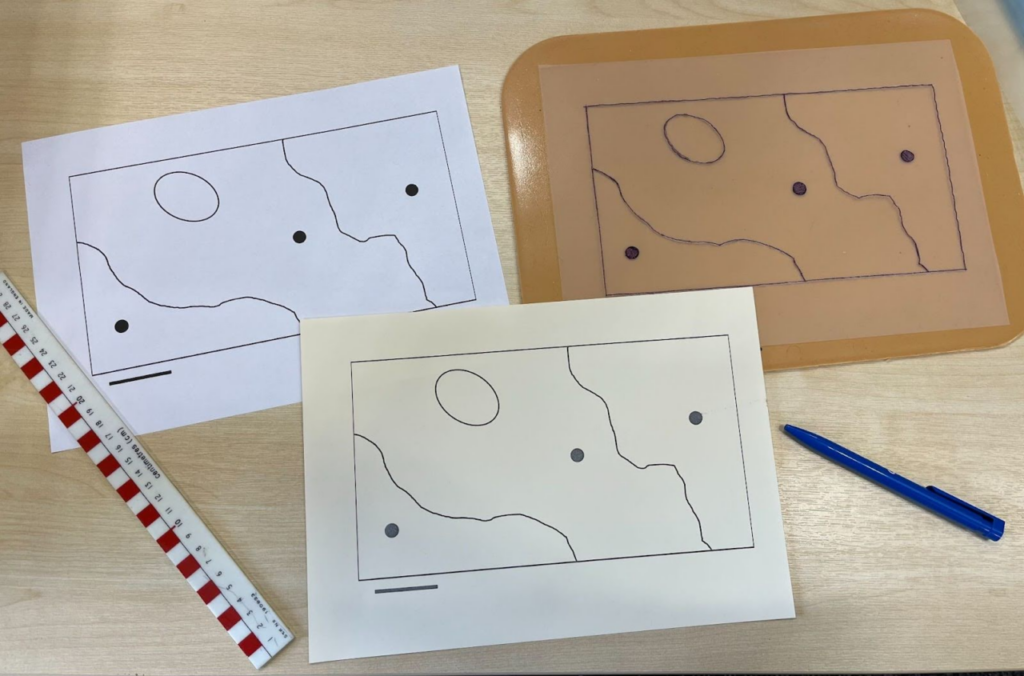
The photo below shows various approaches to the same map, which was part of the materials for a student workshop exercise. In the upper left, is a printed version of the map which provided the template for the example on the upper right. I traced the map from the printed version onto German film and then traced over the outline again on the geometry mat to create a tactile version of the map. The tracing is difficult due to the texture of German film, but this did produce a tactile map where both the dots and the lines were easily perceivable.
Different examples of the same map, printed, traced on German film and printed on swell paper.
The target student studies in person, reads braille and has a PenFriend Audio Labeller, which opens up different options for tactile diagrams. On the map, different archaeological sites are marked with dots, whilst the underlying geology is indicated by lines on the map. I digitally edited the original version of map to enlarge and remove the text labels – labels could then be added back into the tactile versions either with braille tape (although as discussed in the previous post, this has a tendency to curl, especially if stuck on German film) or using PenFriend stickers. In the centre in the lower part of the photo is the attempt to print a tactile version of the map on Swell paper, using a heat emboss printer. We’re restricted to A4, which is limiting, as the lines need to be quite thick to create perceivable designs. The need for thick lines across a relatively small page limits the detail possible – as well as potential space for any braille labelling. This is a problem in creating diagrams for Higher Education study, as all the examples in the materials that accompanied the printer are designed for primary school use. I judged this design to be simple enough to be possible with the heat embosser, but the result was not very successful. The dots raised well – this was a pleasant surprise, as areas of solid ink often bubble, creating an unpleasant texture for students to work with. However the lines were too fine to be easily perceivable, so the map as a whole was not workable.
This example illustrates the issue of time put into these resources and how useful they might be. This map is for a single workshop exercise – it is not key content for the course. I considered trying to digitally re-edit the map to create thicker lines. The texture of the Swell paper means that the heavily inked the design, the greater the risk of smudging as it is printed – which in turn can make a print unusable. In this case, this was further complicated by the fact I was not working from the original diagram, so the digital editing was not as straightforward as it might be. Ultimately, I decided against it. In the standard workshop handout, this map takes up half an A4 page, as the basis of an exercise. This shows how much time and effort converting something seemingly small and simple into a meaningful and usable tactile resource (or alternative format of any kind) can take.
Experiments for archaeology- but not experimental archaeology
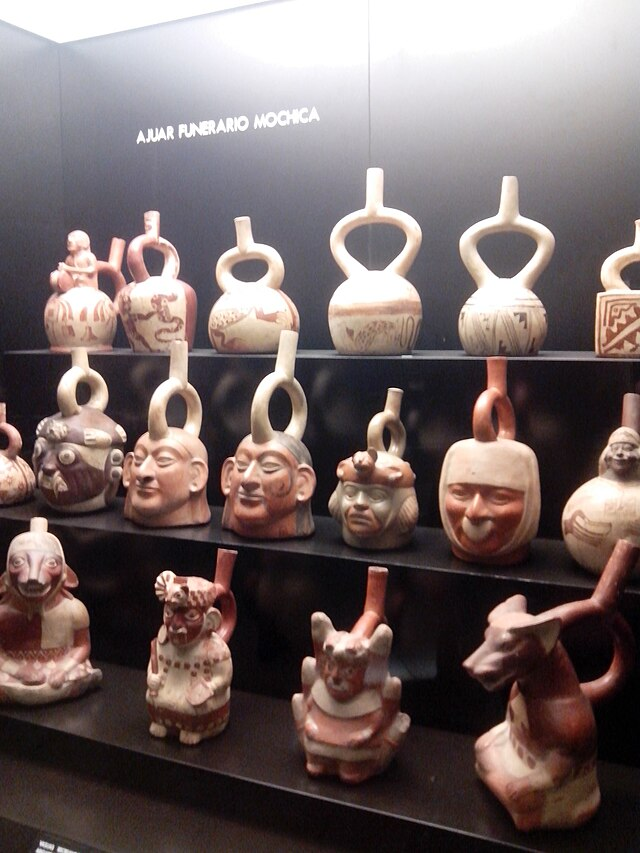
Archaeology teaching is also the source of the next example – from a workshop discussing morphology. One of the examples for the workshop was Moche stirrup spout vessels, a very specific style of pre-columbian ceramic. These pots have a looped spout above the pot and range from simpler forms, to surface decorated examples, through to complex pots in the form of heads, figures and animals. This image (used under Creative Commons, photo by Miguel Alan Córdova Silva) of a museum case of Moche stirrup vessels illustrates some of the range of forms, from the simpler vessels at the top, the head form examples on the middle shelf, to the full figures, including animal headed figures on the lowest shelf.
A museum case of Moche stirrup vessels showing the variety of shapes they can take.
Thankfully the workshop was concentrating on the variation of the simpler forms but this still presented a challenge. The spout is in the form of a stirrup, thus the name of the pot – but how useful is that to someone with little to no sight? A stirrup is not a sufficiently familiar object to most people for that to be a meaningful descriptor. I thought that a model of the basic form might be a good starting point – if somebody can handle a model and understand the essential form and structure, they then have a starting point from which they can extrapolate what variations would be like.
My first thought was whether it might be possible to 3D print a vessel. At the University of York, I’m lucky to work in the same building as the Creativity Lab and YorCreate, so have access to 3D modelling and editing software, as well as 3D printers. Unfortunately even the simple forms of these pots would be complex to digitally model and beyond my very limited skills. However, the increasing availability of 3D models of artefacts from museums meant that printing still might be a possibility. Many museums are starting to make digital 3D models of items available through platforms such as SketchFab. Not all of these can be downloaded to print and not all are free, but it does open up possibilities for printing handling models of archaeological artefacts, which could be a great accessible resource.
Nevertheless, even with an existing 3D digital model, these are still complex items to print. More complex prints require printed supports – either built in from the same print materials and designed to be snapped or cut away from the final model, or printed in PVA, so the final print can be soaked and the PVA props dissolved away after printing. This makes designing the model potentially more complicated – which approach will you take? If it’s an unfamiliar form – and this was – you have less idea how this will print. Additionally, the printing would have needed infill – effectively creating a solid object (albeit the inside is typically printed a honeycomb rather than truly solid) rather than as a vessel. This could change how someone fundamentally perceived the object.
Whilst none of these are insurmountable challenges, they are complicated and they do take time to address. Time was not on my side – the materials were needed in just over a fortnight’s time. I do want to explore more 3D printing and building up a library of replica objects, but in this case, it was too complicated and too time consuming a solution.
These are ceramic vessels. Whilst actually throwing a pot and firing it was not going to be possible in this time frame, air drying clay seemed like a possibility to create a small model of the basic stirrup vessel form. This had the advantage of being quicker than the 3D printing, could be created as a hollow vessel and whilst not the right kind of clay, air drying clay would be closer to the original ceramic in weight and texture than the light PLA plastic of the 3D printers.
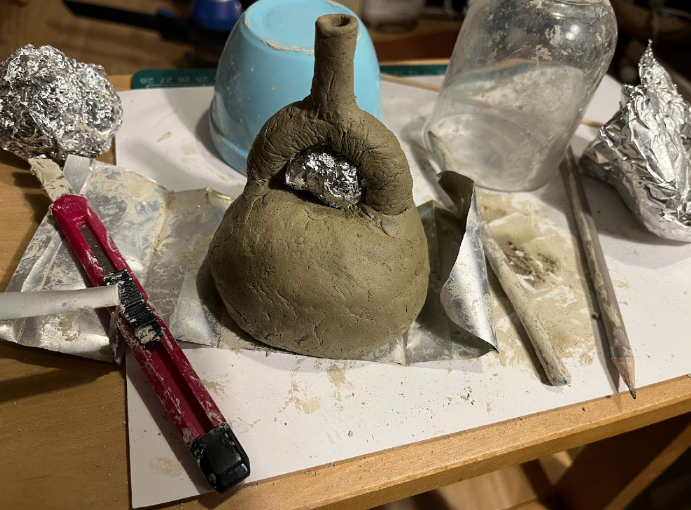
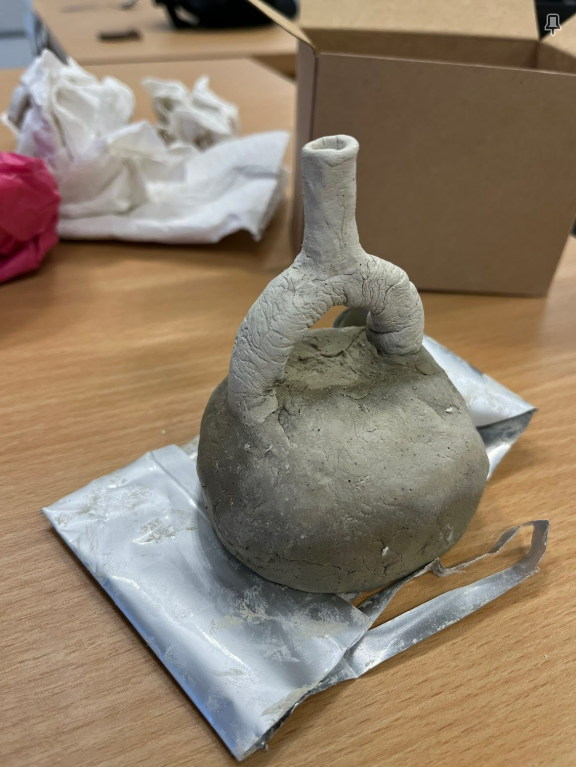
So I bought some air drying hobby clay on my way home and that evening attempted to create a Moche style stirrup vessel. Whilst my favourite forms from the pictures I’d seen when searching for examples were the animal shaped vessels, I was again relieved that the session seemed to be on the morphology of the plain forms! Air drying clay is far stickier than clay otherwise used in ceramics, which made the modelling process challenging. There is a long tradition of experimental archaeology, with researchers trying to recreate artefacts to understand the techniques used. This was not that! As shown in the photo, I resorted to various modern aids unavailable to the Pre-Columbian potter, using existing objects like a glass as a mould for the vessel, using a craft knife and pencils as modelling tools and relying heavily on scrunched tin foil to create a prop for the arch of the spout as the vessel dried.
A clay moche pot in the making, surrounded by various tools.
The attempt was moderately successful: I did manage to make something approximating the shape of the Moche stirrup spout vessels, it was a hollow ceramic vessel, I did manage to get this safely from home to campus without it breaking and it was allowed to fully dry out safely in the office, as pictured.
The completed moche pot.
Was it worth it? I don’t know. This was a resource designed so that the student could more fully engage in a workshop, but I didn’t get feedback that it had been that useful. As a resource for a single workshop, this was a labour intensive solution. I think creating more models has potential to support courses in future, but less so for standalone workshops. Certainly more lead in time is needed, especially for 3D printing.
Decision trees – and leaves
The next examples are from trying to create materials to support a Biology project. The students were given a plant ID key to identify meadow plants, to enable them to establish the diversity of an area. The plant ID resource consisted of images of each of the plants, with a decision tree format of questions. The questions were designed to refer the user to different sections of the guide and eventually, through the questions, identify the plant. They could compare the specimen with the picture. The user was intended to skip to different bits of the guide, indicated by colour and letters. This is not an accessible resource for a visually impaired student – but how to create a meaningful alternative format?
A decision tree or flow chart process is not easily navigated by anyone reliant on a screen reader or magnification for access – even less so if they are complicated. The student who would be taking this workshop uses a screen reader. I decided that the best way to replicate the decision tree process in an accessible format for them would be to create an internally linked Google Doc. This could retain the questions and descriptions from the original source, but a hyperlink to each section would make it easier to navigate the source as needed, without requiring the user to jump about the source in the same way. I thought this would also enable the student to follow the same decision making process in identification that other students on the course would be following from the original resource.
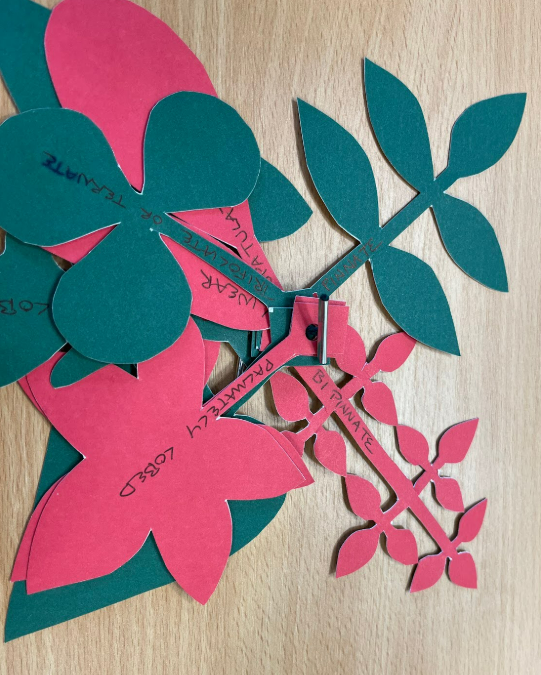
This took care of the decision tree itself, but not of the use of diagrams within it to help the user identify the plant. These outline diagrams showed leaf placement and the leaf shape – effectively a visual glossary. Without this, it would be less clear to the user what they were being asked, when needing to distinguish between a cordate leaf, a palmately-lobed leaf or a bipinnate leaf. I created two resources to try to provide this information, one digital and one physical. The supporting digital resource was simple – a glossary of terms, written to describe things clearly and concisely, with as little visual bias as possible. The physical resource was a set of card leaf cut outs, designed to be a tactile way of conveying the shapes of different leaf shapes. These were a little cruder than the diagrams in order to be successfully cut from card and be usable – most notably the stalk of each leaf had to be reasonably thick. I cut these to have a square base at the end of the stalk, which was large enough to accommodate a hole punch, so the whole deck of card leaves could be joined together with a treasury tag.
Leaf shapes cut out of card stock and held together with a treasury tag.
I labelled each leaf, but given the nature of the cut shapes, these were not really suitable for braille labelling. However the identification task was to be done in groups, so the student would have sighted colleagues who would be able to read the text and find the relevant leaves. This was a successful resource – feedback from the student was that it was helpful to be able to feel leaf shapes and that it also made it easier for other sighted members of the group to think about and identify leaf shapes.
Reflections
As Lilian discussed in the Tactile Graphics post part 1, not all resources need to be durable. Some handouts are designed for students to keep and refer back to as needed, whilst others are ephemeral, designed to provide information for specific workshop, activity or taught session, but not needed beyond that. It can be difficult to determine how much time and effort should be devoted to experimenting with accessible formats of what are essentially going to be disposable materials. Spending too much time on developing complex alternatives to materials which are intended as background to a workshop is not a good use of time which could be better spent on ensuring essential materials are accessible as possible – and can also distort the time management of the student, directing them to give greater attention to less consequential materials.
Cognitive load is an issue here. Are all ephemeral or transient materials necessary for the student to have as long term resources? It is harder for visually impaired students to distinguish between materials, which can lead to materials intended for short term use being conflated with long term resources and given as much attention, which ultimately risks distracting the student from the more important materials. Looking at the learning outcomes, both for individual sessions and for modules as a whole, can help ascertain which materials are essential to support the student. Considering what exactly the student is required to do whether at a workshop, a course or an assessment level can determine which materials are required to achieve this, and which might be considered more as background or as not strictly necessary to achieve the learning outcomes.
The main lesson which I have taken from all of this, is that context is critical. When resources are supplied by a lecturer with a request to “make them accessible” but with little information about the session, it can be difficult to work out the importance of each resource for the seminar or workshop. Getting the emphasis right, as to which resources to prioritise, how durable alternative formats might need to be and even how the resources might need to be used, all requires some awareness of the context in which these resources are intended to be used. Understanding how resources are intended to support teaching is critical to this. So, materials aside, I think creative thinking and contextual awareness are the most important elements to produce meaningful tactile resources.
Alice and I form the digital accessibility unit at York. Disability Services often refer students to us for additional digital skills support. We also offer support to the lecturers who are working with these students, some of whom have severe visual impairment. We had a discussion about our experience so far this academic year on creating tactile resources for students. Although we both work in the digital field, there are things that are easier to understand through other means, and tactile resources can provide a good supplement for visuals and technical content. In part 1, Lilian explains her process of thinking through when and how to make tactile STEM graphics for a student. Equipment mentioned is explained in the heading ‘What tools do you need to make tactile graphics?’.
How do you decide when to make tactile graphics and who will make it?
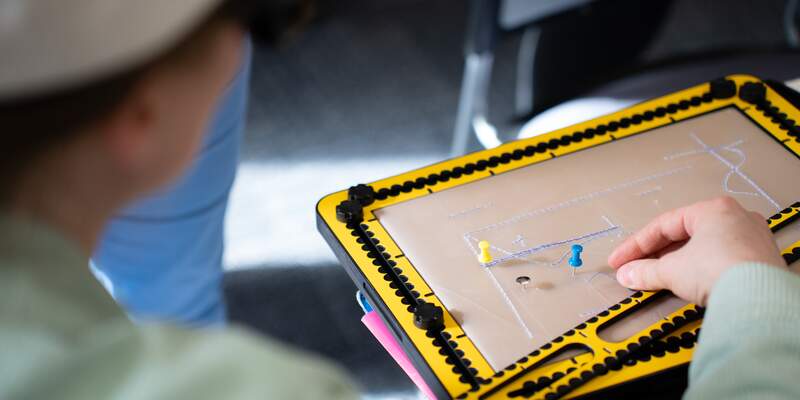
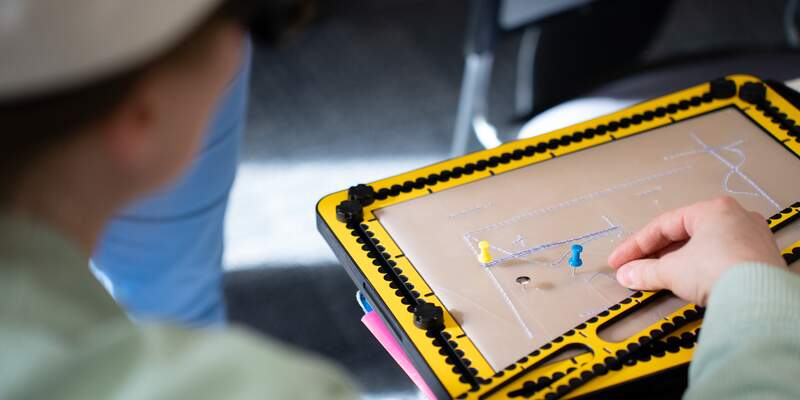
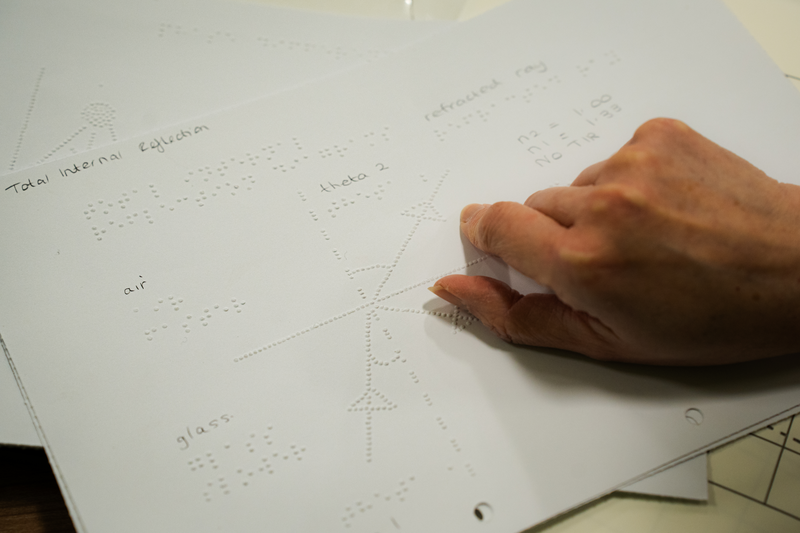
If a lecturer asks me to help make tactile graphics, my first question would be to ask ‘how many’ and ‘how disposable are the graphics’? By this, I mean how much time does the student need to spend with the material to understand the visual concept. If there are 20 graphs and they are not too complex, asking the lecturer to have an appointment with the student and drawing them on a tactipad and plastic film (also known as German film) is often a good approach. You can build up the diagram bit by bit, which is easier for the student to understand than supplying a finished product. The student or the lecturer can then use a braille labeller to label the diagram.
A student exploring a diagram on her TactiPad.
It’s worth using a marker to label the diagram as well so a sighted support person can help identify what the labels are in future.
We’ve had challenges with the sticky braille labels falling off the plastic film so we would recommend using double-sided tape to tape them down. (Update 9 May 2025: I would aim to stick labels on paper rather than the plastic film if you want them to stick around! See part 3.)
If the resource needs to be handled for a bit longer, and has complexity, then I would get involved in making the resource for the student.
How can the student’s peers get involved?
A quick way to convey simple graphs that don’t need to be stored is to use a pinboard (or even the tactipad) with pins and string. This might be good for a quick scatter plot explanation, or even how a gradient changes if something in an equation changes. This is a good way for the student’s peers to get involved in collaboratively producing something tactile as an immediate resource for discussions. It helps them to understand how to work inclusively but also provides a physical way for the group to work together with data.
Braille graph paper, available from the RNIB shop, could be useful for this kind of work.
Braille graph paper
Other items that can prove useful are Wikki Stix, a kind of waxy string that sticks to paper, allowing you to create fluid shapes that will stay in place. This could be used in conjunction with previously prepared tactile backgrounds. In the image below, a cell diagram was prepared by the student’s teaching assistant (during A levels) using Swell paper with Wikki Stix added on top of the cell diagram.
Wikki Stix on a diagram made on Swell paper.
Florist wire and pins on the TactiPad can also be used to good effect, as demonstrated by a student in the image below.
TactiPad with pins dotted across it. A student uses some florist wire to indicate the line of best fit through the pins.
When would a lecturer make tactile resources with a student and when would they do it in advance?
When a diagram can be drawn easily on a TactiPad, but would end up being too complex once it’s completed, it’s worth building up the diagram with the student in a face to face tutorial, drawing up one bit at a time.
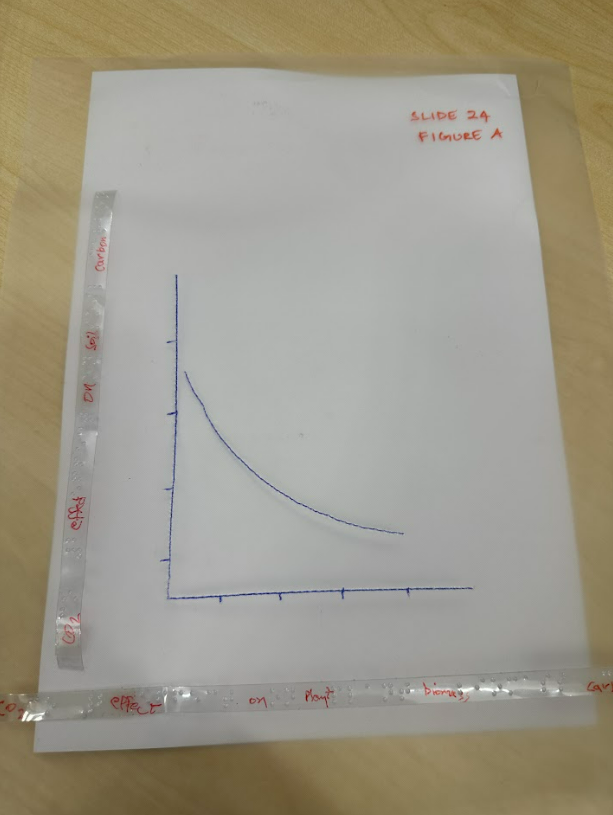
Some figures are straightforward enough for the lecturer to prepare in advance. We advise departments to purchase a geometry mat (a cheap version of a TactiPad) and some plastic film so they can create their graphs easily. Below is a graph that shows the trade off between soil and plant carbon storage. It’s been prepared by the lecturer in advance to use in a session with students so a helper can pull out the graph which is labelled, and put it in front of the student. Adding the labels in handwriting is a necessity for sighted helpers or peers to use this with a student.
Graph with braille labels produced by lecturer on plastic film.
This can be seen as a ‘disposable’ graphic since once the concept has been illustrated in class, the student should be able to understand the concept without a tactile aid. The student is unlikely to want to work through piles of graphs like this on their own, but if they do wish to keep them, I would notch the top right corner of the graph (cut away the corner) to help them work out which way is up, add the week number, slide number and figure number and possibly a bit of context. This can be a lot of work if you have several graphs. Plastic film can be lightweight but a pile of these with labels would soon become too bulky and unwieldy to store.
You’ll also note that the labels are curling up and wanting to peel away from the plastic film. This is a constant battle with braille labels made with a braille labeller. The easiest thing to do is to add a bit of double-sided tape to ensure the labels stay put. I’ve seen advice from other VI instructors to try using Dymo tape instead in the labeller. (See updated advice on this in Part 3.)
What’s the thought process in making one of the more complex resources?
Box plot example
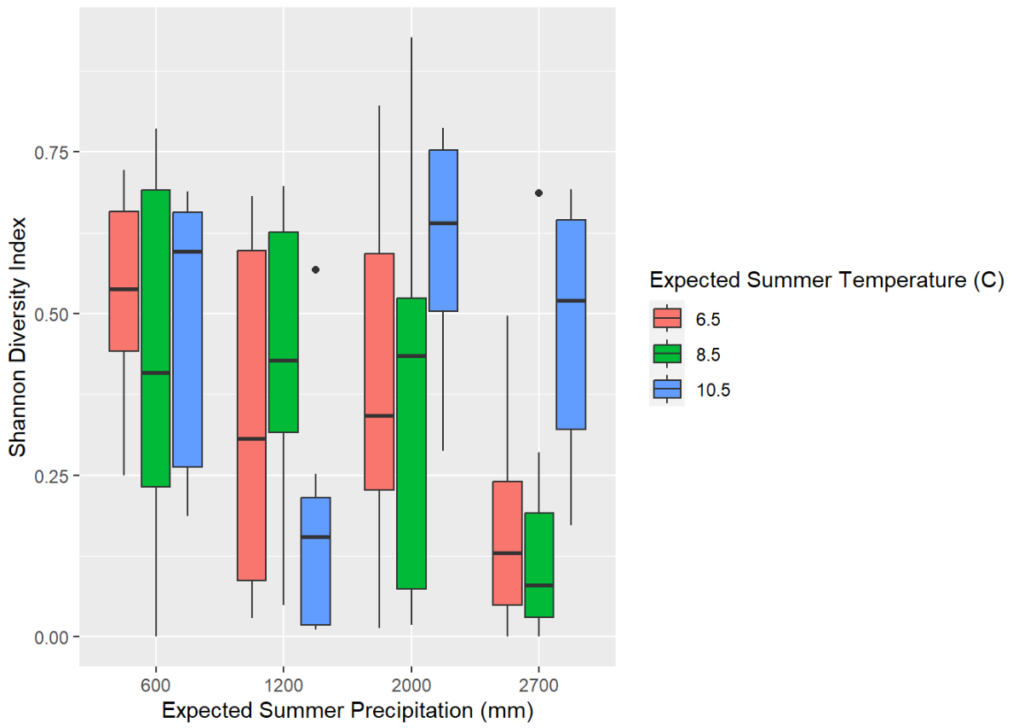
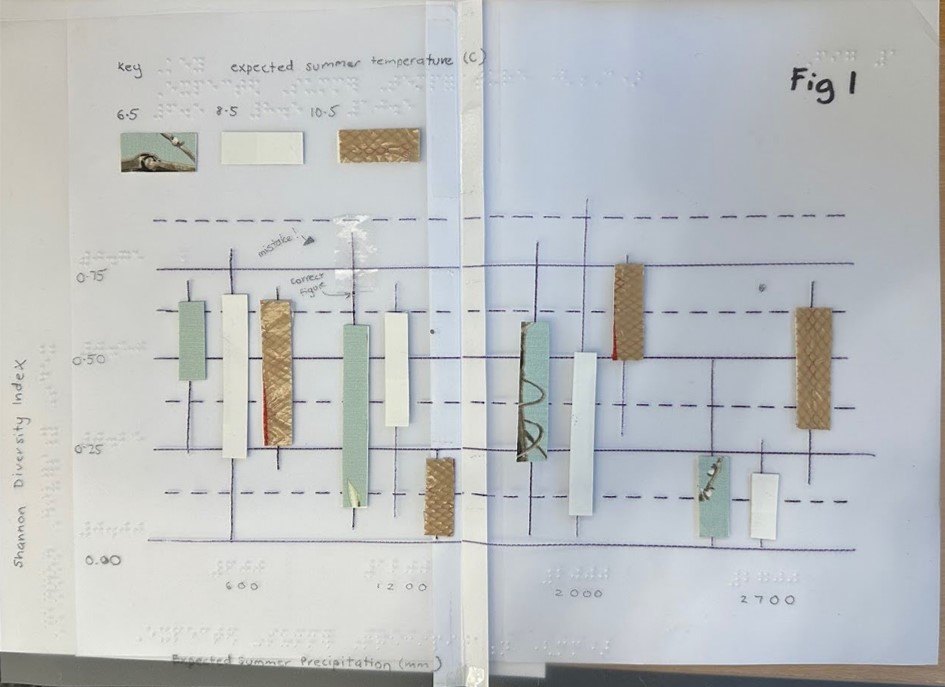
One example is the box plot I made for a student’s Bioscience module recently. It took me multiple attempts and several hours! Fig A is the digital image and Fig B is the tactile resource I made.
Fig A. Shannon Diversity Index box plot supplied by lecturerFig B. Handmade tactible version of Shannon Diversity Index box plot.
The box plot was sent to me as a digital image so I had to create it on graph paper first. I quickly worked out that A4 landscape would be too small to fit in all the detail and the braille labels so I decide to make it an A3 size. The challenge is trying to stick 2 sheets of plastic together! You’ll see a big paper seam in the middle of the box plot. This allows the resource to be folded so that’s a benefit, but the plastic film would not stay stuck to any kind of clear tape. In the end, I had to use double-sided tape and a paper seam to keep the thing together. I’ve since found some A3 laminating pouches that I think will work in a similar way to the plastic film so I’ll give that a go.
Drafting what you need on graph paper can be helpful as you have to remember braille takes more space. I made sure there was space for a key as well at the top of the graph.
Next, I had to work out how best to convey the grid lines in such a way that they wouldn’t create too much cognitive load. I used solid lines at 0.00, 0.25, 0.50 and 0.75, with dotted lines in between to indicate intermediate values. I decided to braille the labels directly on to the plastic film rather than using the braille labeller since the labels tend to fall off. After making a couple of mistakes and having to start over again, I recommend brailling any text or labels onto a separate sheet of plastic film, cutting them out and using double-sided tape to stick them down. That way you can adjust where the label is going to go as brailling directly on to a diagram is hard to correct if there are any spacing adjustments you want to make.
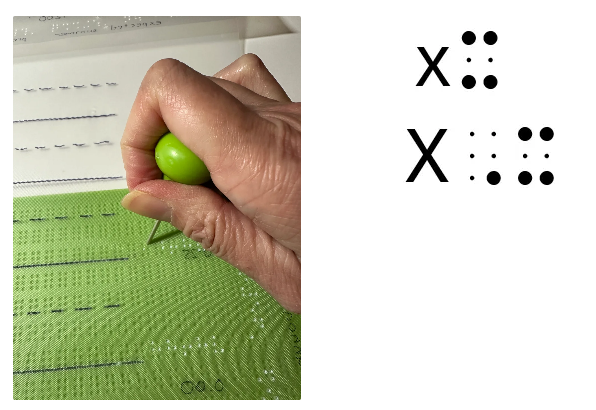
Fig C shows me using a manual braille slate to press the braille dots into the plastic film. It also shows the difference between lower case x and upper case X in braille. Manual braille takes a bit of getting used to; you have to press the dots into the film back to front so they are the right way around when you feel them. There is a level of cognitive load in flipping the characters you are brailling. I type what I need to braille into Brailleblaster on my laptop so I have a reference to work with, and can work out how many characters I might need. Capital letters and numbers need two cells, for instance, so it’s not as straightforward as just counting the characters of the text.
Fig C. Manually adding braille labels to a diagram. The letters x and X in braille code.
The nature of this box plot meant I had to find 3 different textures to indicate the different temperatures which are visually conveyed in colour. I had to ensure it was something that had a fairly firm edge to help with perceiving the upper quartiles and lower quartiles. I used some plain card, some leftover wallpaper that had a texture and stuck some mesh bag on to card for the third option. Each whisker was drawn directly onto the diagram but the upper and lower extremes were indicated with a braille dot to make it more perceivable. I left out the median line at this point because I felt it would be easy enough to score them in when the lecturer was explaining the box plot to the student. Starting with a simpler version is always best. In this case, I couldn’t easily replicate the resource multiple times and build it up in complexity because it would take too long! Outliers were simply indicated with a big dot.
I made a mistake on a whisker in the box plot and rather than make the resource all over again, I covered the mistake with clear tape and indicated the mistake in text for anyone using the resource with the student. The correct placement of the dot at the top of the whisker should help to indicate the correct upper extreme.
Labelling
Students have said to me that it’s hard to work out which ‘graphic’ is being referred to in the text of their lecture notes. Luckily this lecture series has 3 key figures and the lecturer said they would clearly state which figure they were referring to. Ideally, the graphic should also be labelled with the module and week number, but this labelling could be done to the pocket sleeve that holds the graphic rather than being on the graphic directly.
Scatter plot example
Another example is the scatter plot.
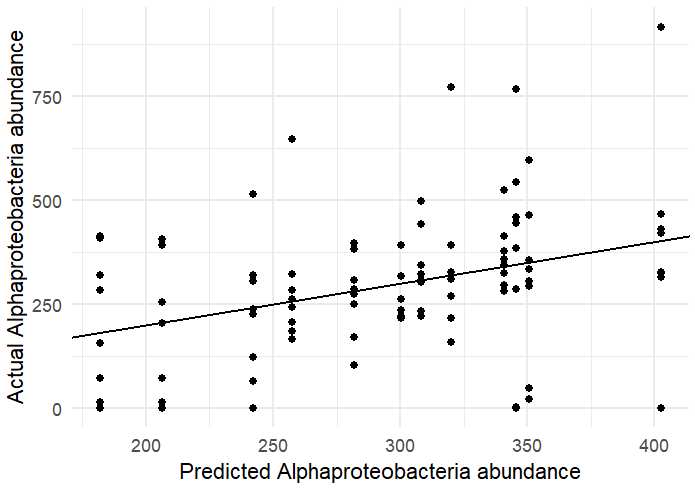
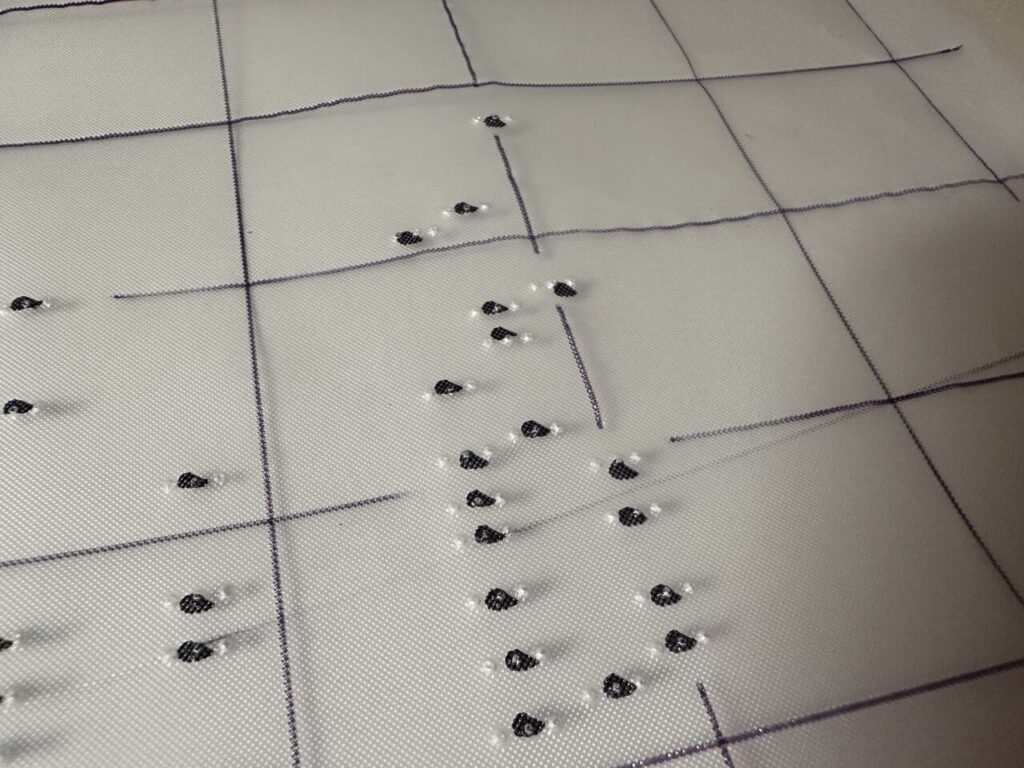
Fig D shows the digital version and Fig E shows a close up of the tactile version.
Fig D. Scatter plot supplied by lecturer.Fig E. Scatter plot made tactile on plastic film.
I had to figure out how best to convey the data points. I took the idea of using 3 dots to indicate a data point from the PathsToLiteracy.org site about creating tactile tally charts. This meant it was easier to sense how far apart each point was on the y-axis. I decided to leave out the regression line and again, suggest to the lecturer that the student score this in with their help after exploring the scatter plot. The regression line was indicated in pen for the sighted helper.
I had the dilemma of how to make data points perceivable if they were on the grid lines. 3 dots on a solid line is not easy to tell apart so I decided not to score the grid line near the data points.
I had to make the scatter plot A3 in size, but I feel an A4 version may be helpful to give the student the overall impression in a more meaningful way while the A3 version allows more detail of where the data points bunch up and how many there are.
Heatmap
Fig F shows a heatmap that the students need to use in the workshops. We discussed printing this on Swell paper, but this is unlikely to produce enough definition to easily perceive the different values in the matrix. I haven’t yet created this resource but plan to use 1 dot for dark blue, 2 dots for mid-blue etc. With a key supplied, this should be a good way to make the matrix perceivable.
Fig F. Heatmap supplied by the lecturer.
What tools do you need to make tactile graphics?
You can make tactile graphics out of anything and it’s worth being creative with various textures and materials. However, there are some standard tools available to support the making of tactile graphics.
TactiPad – The TactiPad has a rubbery surface. When some plastic film is placed on top of it and a line is scored, the line can be easily traced with fingers. The line is a ‘positive’ rather than a ‘negative’ impression, in other words, scoring the film on a tactipad creates a raised line. This makes creating graphics simple since you can simply draw as you would on paper without having to do things in reverse. Our student had a TactiPad from doing her A levels and brings this along to tutorials and group work so tutors and peers can make graphics easily with her. The TactiPad is a slightly bulky tool but worth the effort to aid communication. I purchased two different versions for my own use: Sensational Blackboard from the US and the geometry mat from RNIB. My favourite is the Sensational Blackboard as it is flatter and has a rigid base. The geometry mat we fondly call ‘fake skin’ and we lend this out to lecturers who are preparing materials in advance. I’ve tried to score on a basic rubber mat but found that it doesn’t create raised lines. There’s some property of the material in the geometry mat or TactiPad that makes the plastic film score ‘up’ rather than ‘down’.
German film – also known as plastic film or embossing film, they come in A5, A4 and a size that fits the tactipad (27 x 34 cm). You can emboss on thick paper, but it’s likely that the paper will flatten as the lines are traced whereas with plastic film, the lines stay raised on the plastic. Paper is also more likely to tear when being scored, compared to plastic.
Braille Slate – These are easily available from online stores on the Internet and come in all shapes and sizes, from small notetaking slates to A4 slates. They allow you to create braille but in reverse. UEBOnline is a good website to use if you are going to learn braille. There are many YouTube videos and websites that will explain the braille code. The main thing to know is that we use UEB (Unified English Braille) and for maths, we use UEB maths. In the USA, they use nemeth code for maths.
Braille labeller – Available from the RNIB store, these are like Dymo labellers and allow you to press braille into a sticky label to use with diagrams. Unfortunately, the labels don’t seem to want to stick to the plastic film so double-sided tape is advised! I also find it easier to just manual braille the longer labels onto film, cut that out and stick it on rather than using the braille labeller, but it’s a handy tool for anyone who doesn’t want to learn braille. You are limited to uncontracted braille which can make for longer labels. Learn about uncontracted versus contracted braille.
Perkins brailler – A Perkins brailler is like a manual typewriter that will make embossing much quicker on paper or on film. However, you would need to learn to type in six-dots, which is the standard input method for braille code.
Brailleblaster – This free software runs on your laptop and allows you to type in text and maths and see the braille code that you can then produce for your diagrams. It’s possible to print braille – see the section on Printers below.
Pin board, string and pins – A large pin board with string and pins can be a useful temporary surface for sketching out quick concepts like graphs, gradients and scatter plots.
Wikki stix – These are slightly tacky (to the touch) bits of wire that will stick to each other or to paper and plastic, like blu-tack would do.
Penfriend – This is an audio-labeller. You stick a penfriend label on a diagram and you can record a description of it to play back later. Some students may have this which can help you create resources together.
Aren’t there printers that can make these tactile graphics?
There are machines that can help in making tactile graphics.
PIAF tactile image printer or Zychem’s Swell Form Tactile Graphics machine are two such machines. They have to be used with Swell paper which has a special coating. After printing a graphic onto Swell paper, you put it through the machine which causes the areas with black ink to ‘swell’ up. There are lots of tricks needed to make good graphics with swell paper which my colleague, Alice will write about in part 2. We use a combination of manually created diagrams and those generated with a Swell machine depending on what works best.
Fig G. A resource created by a student’s helper during A levels. Braille labels and sticky dots have been added to a Swell diagram.
Braille embossers – These machines emboss raised dots onto braille paper and are therefore useful for creating braille text as well as diagrams. Not all braille embossers can do diagrams, and not all of them can generate different height dots. Some will print out in coloured ink as well as embossing dots like the SpotDot embosser. These are very expensive but it’s on our wish list!
Braille embossed diagram
Aren’t there braille pin boards that can dynamically create diagrams?
You would think so, wouldn’t you? These items are only just coming to the market in 2025. One example is the Humanware Monarch. Other examples are mentioned in my previous blog post on the Braille in Focus event under Braille Technology.
What about shapes that are 3d in nature?
My colleague, Alice, will discuss how we’ve created some 3d objects using clay and 3d printers to supplement student learning in the next blog post. We also show how a student has used voice labels to help with remembering anatomical structures on a skull!
Conclusion
Tactile resources can be quick and easy to make or be time consuming or expensive and reliant on having the right equipment. Several lecturers have now learned to generate quick tactile graphs to support their students and for that, we are very grateful. The minimum tool set has to be the geometry mat (at £13.50) and some plastic film. I would advise anyone starting out to speak to their Disability Services to coordinate the purchase of these resources to ensure they can be used across several departments if necessary.
We would welcome any advice from others who have made tactile graphics for their higher education students as we have so much more to learn. Please either leave us feedback below or get in touch: digacc-support@york.ac.uk.
Acknowledgements
Many thanks to Dr Robert Barham, Lecturer in Mathematics at the University of Leeds for reviewing my initial blog post draft and making suggestions for changes. Robert is also supporting a VI student at Leeds and together we are building knowledge in this area. We hope to showcase more of his input as we continue to explore this topic in ensuing parts.
Many thanks to the lecturers who have given permission for their diagrams to be used in this blog post. We are very grateful for their hard work in supplying these for the blog post and for aiming to make their content usable by their sight-impaired students.
Many thanks to Alex Holland, our photographer, for many of the photos at our workshops, and our students who provided examples for us to capture.
The term AI is used a lot. From the context, you’ve probably guessed we’re not talking about Avian Influenza or Artificial Insemination, but instead we’re in the realms of Artificial Intelligence. But even then, what do we mean by AI? It’s something of an umbrella term now, but the phrase “artificial intelligence” was coined in 1956, to describe computers doing tasks in a way that mimics human intelligence. What tends to be referred to in current debates around AI is “Generative AI”, meaning AI designed to generate new outputs based on existing outputs.
Generative AI is by far the more contentious. More traditional AI has long been a staple of assistive software and accessibility features – it’s what powers spell check tools and voice recognition to enable dictation. However, these tend to be features within a program and aren’t generating content. Spotting typos in your essay is very different from writing passages of it; transcribing your dictation is different from composing it for you. It helps you produce your work, it doesn’t create content for you. With generative AI, the clue is in the name – it generates content. Rather than mediating the process for you, it generates material – be that image, text, music or code. AI features have been transformative for digital working for many disabled people, but as generative AI is introduced more widely, there are also potential risks. It’s the addition of these generative AI features into assistive software and their marketing as accessibility tools that this post will consider.
General concern around AI tools and features
In this post, I’m approaching AI from the perspective of assistive software and accessibility (and this is just a blog post, this is by no means comprehensive) but there are wider concerns about the use of generative AI that I need to acknowledge – each of which has an impact on use regarding accessibility. The first much discussed and yet to be tackled problem of generative AI is environmental cost. These are energy hungry tools and their water consumption alone has been cause for concern, as the data centres that power them require vast quantities of water for cooling. There are potentially beneficial uses of generative AI, but the environmental cost of using these tools means we need to be sure that they are really adding value. If there isn’t a clear use case, why is an AI element being added? These products come at significant energy and water consumption cost – their output needs to be worth this price. Disabled people are disproportionately impacted by environmental disasters and climate change. In trying to find a quick solution to a tech problem, even to improve accessibility, use of these tools could be contributing to the long term and global difficulties that increasing climate change brings to disabled people (as well as to the planet as a whole).
The second of the elephants in the server room is security. Because of the proprietary nature of algorithms, companies are not very transparent about what their tools do with data, with key security questions for any digital tool being what data is accessed, what data is stored and where it is stored. Whilst extensions can provide additional accessibility features, these constitute third party processing. If the only way to make a package accessible is to use third party tools, this potentially puts the disabled user at a digital disadvantage, potentially left with the dilemma of choosing between an accessible feature they need or keeping their data secure.
The third issue is copyright. It’s possible to use some tools without the materials being processed being used to train the underlying AI, but this isn’t standard. Many AI tools access, use and repackage data from copyrighted sources. This is a risk both with any research data or original work being used with AI tools, and also in using AI tools to access published literature. It’s a complex landscape, although this JISC introduction offers a useful overview of the key issues. From an accessibility perspective, one of the most heavily marketed academic uses of AI is for summarising articles, commonly promoted for those with SpLDs, neurodiverse individuals and anyone with cognitive load issues. But where have you sourced the article from? If it’s from an academic library subscription, can you use it in this way? Many academic publishers have clauses in agreements specifically prohibiting use of AI tools with their published materials – covering articles, books and datasets. In which case – why pay for a tool that promises to summarise material for you, when you can’t use it without breaking the law or specific user agreements? The legal situation is still unclear, but historically, publishers are litigious – time will tell how this will pan out. But aside from the legal questions are the ethical ones – has the author agreed to this use of their work? Does using a summary tool inherently mean offering up an author’s intellectual property to train AI? It’s a fast moving and still developing field. We’re still trying to assess what long term impacts might be and where problems have arisen, few (if any) legal precedents exist. Hopefully some of these problems will be resolved and there is movement towards this – developers have created models which only work with open data, so tools which work within copyright law are available. However, until this is the norm for the products offered from the big tech companies, this remains problematic. Encouraging users to build working practice that depends on these tools risks offering an assistive tool, only for the legal issues to see it being withdrawn, or offers a potentially assistive tool that supports one group at the expense of another – supporting those disabled users who find it beneficial by exploiting the intellectual property rights of the authors. Both the security and copyright concerns put disabled users in a very awkward position. By using generative AI unchecked in products, the digital tools which could offer transformative support put them at risk – of poorly protected data, or breaking GDPR or copyright law, or exploiting the intellectual property of others.
Within an assistive software and accessibility context
There is also the risk of these users falling for promises which these generative AI tools simply can’t fulfil. Advertising overpromising new features isn’t new and AI features aren’t alone in being offered as solutions to complex problems. Snake oil is nothing new and products promising to solve the seemingly insoluble have been around for most of recorded human history. These products find a market because people have problems they desperately want help with and the sales pitch promises a solution. Some generative AI packages have been promoted towards those with ADHD, SpLDs and any cognitive processing conditions as tools which will revolutionise their productivity and workflow. But these promises are typically unproven – in many cases the software and tools are simply too new to have any properly demonstrable benefit to any specific demographic. Even with assistive software known to benefit disabled people, these don’t present uniform solutions to accessibility issues. Different individuals with the same condition will experience these differently, some may find it advantageous, others may find it of little help. As such, the wide ranging benefits promised by these tools should be understood as marketing, with anecdotal support at best. The ability for many people to safely use these at work is also sidestepped in marketing campaigns. The significant issues with copyright and security mentioned above mean that in many workplaces, these tools won’t meet cybersecurity and GDPR requirements. Even where there is no workplace barrier to using these, the user is at risk of effectively being used as training data as a disabled user. There are ethical questions about the marketing of tools specifically to these user groups (many of these are costly subscriptions) and the lack of security they offer, as this can be seen as exploitation of a potentially vulnerable group. Stability is also an issue – encouraging people to rely on tools which are subject to change and price hikes risk people coming to depend on tools which may be significantly changed, withdrawn or suddenly unaffordable to them. The cost of subscriptions to these tools can in itself be prohibitive.
These products find a market because people have problems they desperately want help with and the sales pitch promises a solution.
It’s not always clear what the addition of generative AI brings to a product, other than reflecting current trends and potentially adding another element to a sales pitch. For example, generative AI elements are being introduced to academic search tools, promising to find you better or more helpful results. However, the level of description and detail required in a prompt that would return useful results is equivalent to the effort and similar in construction to a structured search – it is no less effort, and the search parameters of the tool are less clear. So what value is this adding? Are consumers being charged more for new features which add little (or nothing) to a product?
Going further – could the addition of generative AI features actually make a tool less reliable? One of the most promoted areas of generative AI within an accessibility context in higher education (although also more widely) is the ability of Large Language Models (LLMs) to summarise longer documents. In terms of academic articles, this purpose is already served, at least in part, by the abstract, which typically acts as a summary of the intentions of the authors and their research. Whilst the abstract is inevitably subject to the bias of the authors, this is arguably already serving the purpose of a summary. A known issue in the use of LLMs is accuracy. These can often generate false answers, sometimes termed “hallucinations”. This is a bit of a misnomer. The LLM doesn’t think, it is designed to present the user with something that looks like other answers in the training data. So it will present something modelled on other answers – even if those answers aren’t relevant. Journalists and others have assessed the accuracy of various LLMs in various ways – this article about asking basic historical questions demonstrates that the answers generated can be extremely unreliable, even on the topic of easily verifiable facts. As such, can these tools be relied upon to accurately summarise an article? This might be fine if the summaries are just being used to identify potentially useful articles, which the user then reads in full and draws their own conclusions, but is more problematic if the user intends these summaries to form the basis of a literature review. Even if just for an initial review of documents, an LLM may be worse at summarising than you might expect. This review of LLM efforts to summarise reports suggests that instead of summarising documents, these tools actually shorten them. That is to say they represent a few key sentences from the source, but do not provide any actual overview of the work and can fail to include important elements of the work in the generated summary. Uncritically presenting these tools as assistive aids to disabled students and academics is to put them in a position of undermining the accuracy of their work.
This isn’t the only area where accuracy in reflecting original sources is known to be problematic. Without further development the use of generative AI could also perpetuate inequalities by failing to acknowledge or address biases in underlying training data. Generative AI tools learn from vast data sets, often from across the internet. And whilst the internet hosts all sorts of information, it’s also home to a lot of misinformation and disinformation. Disturbingly, analytical AI tools have been shown to replicate social biases, including against disabled people, with the potential for real world harm. In creating an answer that looks like other answers, LLMs will replicate biases. Both text and image Generative AI outputs have been shown to recreate stereotypes. False information or data is problematic but may be easier to spot than more insidious replications of bias. Whilst issues around racial biases and misogyny have received more public attention, ableism in AI is also an issue. With AI training content based on biased data and materials containing ableist attitudes, AI output will reflect and perpetuate these issues. Although often marketed to groups of disabled people as assistive, generative AI tools have the capability to perpetuate stereotypes and do harm to disabled people.
Is generative AI an answer or avoiding the issue?
Accessibility by design is always easier than a retrofit, whether addressing physical or digital accessibility. Universal design that accommodates different needs from the start is a far more inclusive approach, anticipating a diverse audience rather than addressing different requirements as an afterthought. Currently, the way in which some generative AI tools are marketed buys into this perception of accessibility as an additional task, rather than an approach to take throughout your work. These tools are offered as ways to render your content more accessible without you having to think about it – you don’t need to take a more inclusive approach, the tool will resolve the problem of accessibility for you.
An example of this is auto generated alternative text – using either inbuilt platform tools or external tools to generate you a short image description, rather than composing the text yourself. So if you haven’t written alt text before, seeing the generated text can be a helpful starting point – how does the software interpret the image? But the skill of image description is providing the nuance of context. If the image isn’t just decorative, why has it been chosen? Did you add it as a typical example, or because it is an exception? What is it about that particular picture that prompted you to choose it to support your message? Essentially your image description needs to impart the information that a sighted user would get from the image that a user with no sight would not – and the auto generated text won’t know what it was you wanted to convey. The automatically generated text can provide a starting point, a description you can edit or add to as needed, but to use that text as your default won’t necessarily serve the purpose of the image description. Default use without checking or editing a generated description perpetuates inequality. By providing an alternative text your content appears accessible, but unless it is meaningful, this just gives the illusion of inclusivity without actually providing it.
Accessibility checkers are another area of automation. I’m a big fan of Microsoft Office’s inbuilt accessibility checker tools, of the Grackle extension for Google workspace and BlackBoard Ally for the BlackBoard VLE. These highlight potential problems and offer suggestions to resolve these. But the important part is the review – these don’t correct issues for you but show potential problems and it is for you as the user to make the necessary changes. These tools support accessible practice – they act as reminders and spot mistakes, but the user still needs to review their work. Accessibility checker tools also aid development of web tools. These run automated checks to identify accessibility issues, but like AI generated image descriptions, these tools need to be a starting point. They can help in the creation of a tool that is technically accessible, but they cannot replace work with disabled users to make a tool practically usable. For example, automated accessibility checkers can help you determine if a webpage can be accessed with a screen reader, but it cannot tell you about the experience of someone using a screen reader navigating a site. Automated accessibility checkers help clear the first hurdles of making resources digitally accessible, but they can’t replace user research and user testing as a means of understanding user experience. However, AI tools are being marketed as a better means of checking web accessibility, with claims that “AI algorithms can analyze user behavior data to identify common navigation issues faced by users with disabilities”. Disabled users find their own workarounds and are frequently highly skilled users of assistive technology in navigating resources. What user behaviour data is being analysed and where is it from? Without direct input from disabled people, can this truly reflect experience? These tools have great potential to support accessible development, but they can’t replace final rounds of user testing by disabled people to determine how truly accessible an online resource actually is. Otherwise we enter a new automated era of disability erasure. The disability rights campaign slogan has long been “nothing about us without us“. Historically this has been the design of policies, services and products for disabled people by people with no disabilities – we could now risk the design process excluding disabled people in favour of AI automation.
Away from academia, a pop culture example of this is found in the Marvel miniseries Echo. Maya, the series’ protagonist, is deaf and communicates primarily through American Sign Language (ASL). As the protege of Wilson Fisk (also known as Kingpin), their conversations are mediated by an ASL translator, with Fisk only learning a few key phrases. Later, Fisk gives Maya an augmented reality contact lens, which superimposes ASL signing over him when he speaks, removing the need for a translator. Maya becomes angry – despite saying she is like a daughter to him, he will not undertake to learn ASL to communicate directly with her. This example encapsulates the discomfort disabled people can feel in seeing those around them relying on tech for inclusivity, rather than changing their own behaviour. It illustrates the attitude that direct engagement with disabled people – in this case provision of a human translator or learning to communicate directly – can be outsourced to tech, that’s it not something worth spending time on. The feeling of being excluded, of seeing inclusion being an afterthought or seen as an active nuisance, is something with which many disabled people are unfortunately very familiar.
This promotion of AI tools as a convenient way of making content supposedly more accessible with no effort raises the question of why can’t we prioritise building accessibility features rather than outsourcing it as an afterthought? Accessibility shouldn’t be relegated to automation to tackle annoyances – universal design is a more inclusive approach, not relying on AI tools to fix problems manufacturers cannot be bothered to address. It can also be seen as an oversimplification of situations, with reliance on automated or AI tools eliminating nuance and giving a poorer experience for disabled users.
So in conclusion…
Do I have a definitive conclusion about generative AI in assistive software or generative AI tools presented as accessibility supports? I’m not sure that I do, but this is a blog post and not a thesis, so maybe that’s alright. Some people may think this is a highly critical post – perhaps in some ways it is. And full disclosure – I’m a librarian by training, I work in digital accessibility and I’m disabled. I will readily admit that all of these factors have shaped my views on the subject. I’m not here to inherently attack the concept of generative AI, but I wanted to redress material I have seen uncritically promoting these tools, particularly the marketing to disabled consumers. Traditional AI features have been transformative for disabled people, and I hope that there are generative AI tools which will have the potential to be so. But I don’t think I have seen one yet. What I have seen is the promotion of tools with questionable security and copyright compliance to groups in search of support, encouraging disabled people to use and subscribe to tools which could make them vulnerable to cybersecurity issues or be used to call their work into question. For me, there is clearly potential in this field to better provide digital support, but there are at least as many unanswered questions – and I’d want to see more of these addressed before promoting adoption of these tools. Most of all though, I feel discomfort with the way that some of these new tools are perpetuating the perception of accessibility as an afterthought, promising to automate accessible features without actually providing nuance or attention to the experience of disabled users reliant on these outputs to engage with content. However generative AI ends up being used, I believe more inclusive design is necessary, building in accessibility to products and services throughout their design, development and implementation. So how do I feel about generative AI and digital accessibility for now? I’d recommend anybody to ask critical questions of claims made for these tools; to think about what you’re automating and why; and whether and however you choose to use generative AI, to adopt an inclusive approach and not regard accessibility as an afterthought.
Drawing on the experiences of staff and current students, this workshop for Uni of York staff and students explores how teaching practices can be made more accessible to visually impaired students. The 5th Feb session is repeated on 11th Feb.
The Braille in Focus event in November 2024 was organised by the Scottish Sensory Centre to celebrate the 200 years since braille was created by Louis Braille in France. Apart from learning about the history of braille, it was an opportunity to meet with other people supporting blind students and to try out some of the latest braille technology.
I attended with a severely sight impaired student from the University and I managed to get my co-writers of An Accessible Maths Journey, Natalie and Cordelia, to join in as they were conveniently based in Scotland already.
Two other serendipitous connections took place; firstly, Ros Walker of St Andrew’s also attended so we managed a catch up on our shared experience of being learning technologists who had gravitated to supporting disabled students. Secondly, the host of the event, Elizabeth McCann had just been in Singapore to deliver a workshop to my niece who works in a charity for blind young people! The world is indeed a very small place.
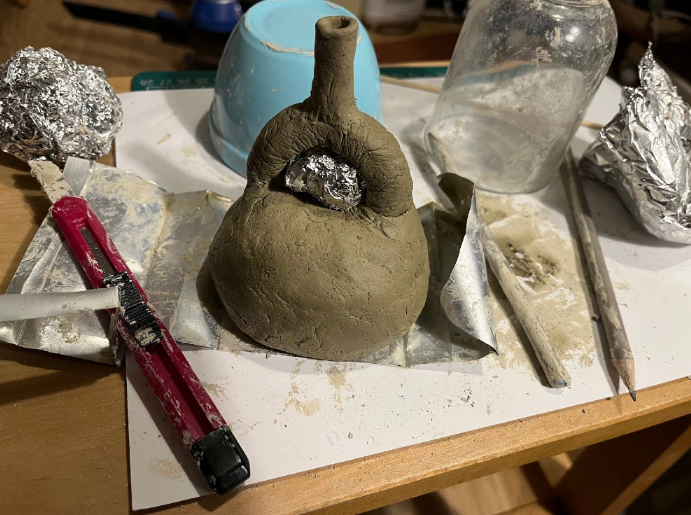
Left to right: Ros Walker, Cordelia Webb, Natalie Curran, Orla Raftery and Lilian Joy
The hosts provided a printed agenda for the day and also provided these in braille. It was such a thoughtful and considerate thing to do.
Steve Tyler, Director of Assistive Technology at Leonard Cheshire Disability gave the keynote address. He took us through the history of braille, from the bias against blind people, the politics and jostling that went on to have a standard braille adopted around the world and even the current fight to retain braille in education in the face of advancing technology. People wonder why braille is needed when it’s so easy to have things read out on a mobile device these days but if you’ve ever tried to study for an exam using audio alone, you’ll appreciate that the brain isn’t very good at single channel learning. Sighted people take for granted how easy it is to skim read or to look back at a previous point in the text; you can’t do that easily with audio so braille (especially printed braille) provides the closest equivalent experience.
Braille technology
After a break we were treated to presentations on the latest braille technology available to blind students.
Ed Rogers from Bristol Braille Technology showed us the Canute Console which allows multi-line braille and a way to create tactile ‘pictures’ on the device.
Stuart Lawler from Sight and Sound followed on to demonstrate the Orbit Slate, a portable multi-line refreshable braille device.
Gregory Hargraves showed us the Paige Connect which replaces the base board of a Perkins brailler (essentially a braille typewriter for embossing braille on paper) allowing it to convert the typing into a digital format. Many people who have learned braille and have a Perkins brailler will likely find this device very useful! He also demonstrated the learning games on the Paige Braille website available to everyone for learning braille.
Elizabeth McCann finished the presentation segment of the day detailing how the Scottish Sensory Centre (SSC) provides support and professional development for teachers of the visually impaired, highlighting the SSC resources available.
Over lunch we were able to explore the devices on show, especially the Canute Console that we hoped might help with displaying tactile diagrams. However, it didn’t work the way we thought it would due to the spacing of the lines essentially being fixed to the line height for braille display. We actually thought the pins would be more regularly spaced allowing any image to be converted into a tactile format. Instead, a legend is used to indicate what letters on the Canute display map to in a diagram. One advantage is the visual display that allows a sighted helper to help alongside where needed.
Trying out the Canute
We also tried out the BrailleDoodle, aimed at children but also useful for quick drawing of shapes – like a Magnadoodle (for those old enough to remember these) except it creates a raised version to help with perceiving shapes drawn. My student also showed me her HableOne, a bluetooth keyboard that makes it easier to type in braille directly to her iphone for quicker notetaking.
BrailleDoodle in the foreground, and the HableOne braille keyboard in the background.
My key takeaways from attending the event were:
Equipment for the sight impaired is very expensive and often, students have additional costs to bear.
Our sight impaired students don’t have easy access to printed material in the same way as our sighted students who can freely print things out across campus if they wish. It would be great to have a braille embosser like the SpotDot on campus.
There is a myth that learning braille is old-fashioned and the need is dying out with new technologies. In fact, the way we learn has not changed and the human brain learns best when engaging with more than one sense. A few students have now mentioned to me how they still learn best if they ‘write out’ with their fingers or with a pen on paper to get things into their brain, especially true for people who lost their sight as children or young adults. Learning braille allows them to scan text or diagrams with their fingers which is a good way to use two senses for learning, eg audio and touch.
Bobby was clearly tired out from all the input at the event!
If reading this blog post has made you interested in learning braille as a sighted person, why not try the UEBonline tutorials where you can use your current keyboard to learn to type braille.
Alice Bennett, Lilian Joy, Digital Accessibility Unit, University of York.
Context
Over 55 participants attended two workshops on Supporting Visually Impaired (VI) students held in September and October 2024. These workshops were the first of their kind run at the University of York, so were a little experimental. The workshops were instigated by a simple wish from one of our VI students: that staff could feel more confident about supporting someone like her. The sessions would help gauge interest in such workshops, but were also an opportunity to raise awareness of available support, as well as encourage the right kind of questions and help staff avoid some classic pitfalls.
Testing the water
As the response and general interest wasn’t clear, the sessions were open to any staff, so covered participants with prior experience of supporting visually impaired (VI) students and those with none, as well as participants from academic and professional support teams from across the university.
Both of us had years of supporting VI students and felt we had something to contribute, but we also put a call out to other staff to let us know if they were willing to share. We were pleased to have contributions from academics, a lab technician, a professional transcriber, professional support staff and two of our blind students.
The wide ranging experience and areas of interest from the participants presented something of a challenge in terms of covering relevant content for all attendees. However, the sign ups and feedback demonstrated that there is definite interest from staff in learning more about this type of accessibility support, so they give a strong and informative platform on which we can build for future sessions.
Workshop format
We set out tables for group discussion so that up to six people could sit at a table. We tried to ensure there was some expertise or previous experience at each table although this wasn’t always possible. We provided some scenarios of challenges our VI students have faced over the years to help stimulate conversation at the table. These were made available in a Padlet as well as a Google doc. Each group worked on different scenarios and contributed some ideas for solutions or else added some further questions in the Padlet, Google doc or even using sticky notes.
Getting familiar with the scenarios and getting feedback from each group can be time consuming in a 1.5 hour workshop. We learned this the hard way at our first workshop and so in the second workshop, we sent out the scenarios in advance, and we focused on one question from each table that could be directed to anyone in the room. This helped with the pacing and the value we were getting from the session, as well as helping us to start an FAQ (Frequently Asked Questions) log. The second part of the workshop allowed participants to explore the materials set out at other tables consisting of tactile learning resources like 3D printed objects, raised line drawings (made by printing out pictures on Swell touch paper), drawing mats and braille tools. Participants could also spend time exploring with the two blind students how they approached learning with their braille devices (eg QBraille XL) and other tactile tools like the Tactipad and braille slate.
Feedback from participants
We sent out a feedback form to attendees to gauge what they had learned and how we could make improvements. Many attendees valued the opportunity to discuss approaches and ideas with colleagues from other departments, finding these exchanges valuable in broadening their understanding and approach. They really valued the perspectives of the VI students and those from the first workshop wanted more of this, which we were able to provide to attendees of the second workshop. They also suggested a more formal presentation at the beginning to help everyone understand what was available at the University.
Attendees learned about various tools available at the university to help VI students and insights into their daily challenges. They learned that simple practices like remembering to say a VI students’ name when talking to them in group work could be helpful. They also realised how support practices varied enormously across departments and how they all needed to work together.
They felt the first hand accounts from VI students were invaluable for helping them understand the challenges but wanted more practical insights into how things like tagged documents actually helped and how adjustments made a difference. Attendees suggested having a central hub of information and resources could really help them feel more confident about supporting VI students as well as a community channel where they could seek on-going support.
Our reflections – Centring without burdening
Organising sessions like this presents a conundrum – how to centre the disabled student voice, whilst not burdening the student. Sessions like this typically rely on the good will of students and many are willing to volunteer their time to improve things, but this must not be exploited. It should be remembered that in explaining problems they have faced, students are reliving potentially uncomfortable or even upsetting situations relating to their disability. It might require them to repeat explanations which they are often forced to give. Whilst this first person testimony is powerful, it can ask a lot of the speaker. There is also the potential discomfort around power imbalance in asking students to lead such a session. Students may be asked to explain failures of provision in front of their lecturers and other staff from their department – this is potentially a very uncomfortable situation in which to place a student, especially as they have given up their time to help educate others.
Aside from the potential discomfort, there is also the issue of capacity. One of the points key to the workshop was to try to convey the problem of cognitive load, emphasising the extra work that disabled students, and specifically VI students in this instance, undertake to be able to complete the same tasks as their non-disabled counterparts. However feedback after the session asked for more from the students. The impulse to centre the student voice is great, but this does need to be tempered by the burden this places on the student.
Additionally, whilst it is vital to represent the disabled student perspective of the challenges they face, it is not the responsibility of the students to suggest the solutions to these. This is a wider issue within much Equality, Diversity and Inclusion (EDI) work – it should not be on the marginalised group to solve the problems of their treatment. In this case, this isn’t just an issue of emotional labour – besides the additional cognitive burden, there is no reason why students would be aware of the existing or potential technical solutions to digital accessibility problems. It is not only not their responsibility to suggest solutions, they are also not best placed to do so.
The student voice needs to be centred, but whilst not exploiting the generosity of students with their time, without making this an additional burden and without any expectation that they should volunteer the solutions to the problems. This is a delicate and difficult balance to achieve.
Timing of Session: Is the future faculty-based?
The workshop was held in person, which gave opportunities for people to see technology like a brailler up close, as well as have a closer look at 3D prints, heat embossing and braille documents. This was beneficial, but in person workshops often get off to a slower start, with staff less frequently on campus often slower to find rooms, as well as the physical timing of getting across campus rather than signing into another meeting. Introductions and discussions help participants make connections and share experiences, but can also take time as well. Given the workshop was already to cover a wide range of material, this placed further strain on the timing of the session.
Given the level of interest in the sessions, one approach might be to do faculty-focused sessions in future. Many of the problems faced when creating digitally accessible STEM resources for Visually Impaired students are different from those arising in Arts and Humanities. Whilst the scheduling of the sessions may be more difficult if each is targeted to a faculty, this might alleviate some of the pressure on the timing of the workshop whilst allowing specialist problems to be discussed.
Student reflection
Ethan Peacock, student, Department of Politics and International Relations
The Supporting VI Students Workshops run by Lilian and Alice have been immensely informative and enlightening and, in my opinion, could and should form a more prominent part of how staff and students approach the academic aspect of university life. Indeed, I feel it is vital that those teaching, supervising or managing courses of study are able to understand and empathise with the needs and experiences of students with additional support requirements as we work towards a more inclusive future, with these workshops constituting an important part of ensuring academic equality for all. At the same time, it is also helpful for fellow students to know more about the different perspectives of their peers, so as to foster a greater level of understanding around how blind and visually impaired students access resources and participate in courses, therefore promoting any future workshops and encouraging individuals from all parts of the university to attend should be an immediate priority.
In terms of the running of the workshops themselves I have no major concerns, and Alice and Lilian are exceptionally well placed to guide group discussions and bring useful ideas to the table, drawing on their wealth of experience in the fields of accessibility and academia to shine a light an area which, thankfully, is being talked about more and more as I myself reach the midpoint of my university journey.
Academic staff reflection
Penny Bickle, Professor, Department of Archaeology
This was an excellent workshop, especially to reflect on best practice, and to hear the perspective from visually impaired students themselves. There were many aspects of the kinds of nuts and bolts teaching that are easily adaptable with a little thought that had not occurred to me at all. For example, how to describe images in lectures to help with the students’ learning, that I think will be of benefit for the whole class, not just visually impaired students. There is also an impressive range of additional resources available which I did not know existed and good discussion on how to use them.
What next
Having learned from running these first two workshops, we now have a clearer idea of how to organise these workshops to help everyone gain maximum value from these in-person interactions.
Create a practical guide for staff based on outputs from the workshop. The practical guide will share the scenarios, suggested solutions, the FAQs and the images from the second workshop. Some of the questions from the workshops have stimulated further research areas. We hope the guide will be consulted to help people build their understanding and confidence and to log further questions to be researched.
Run further VI workshops before the start of the second semester. These workshops may be faculty-based as suggested above.
Run a similar workshop for supporting Hearing Impaired (HI) students. This will help us to work out how to be more inclusive to HI attendees at all our workshops and help us to create a further practical guide!
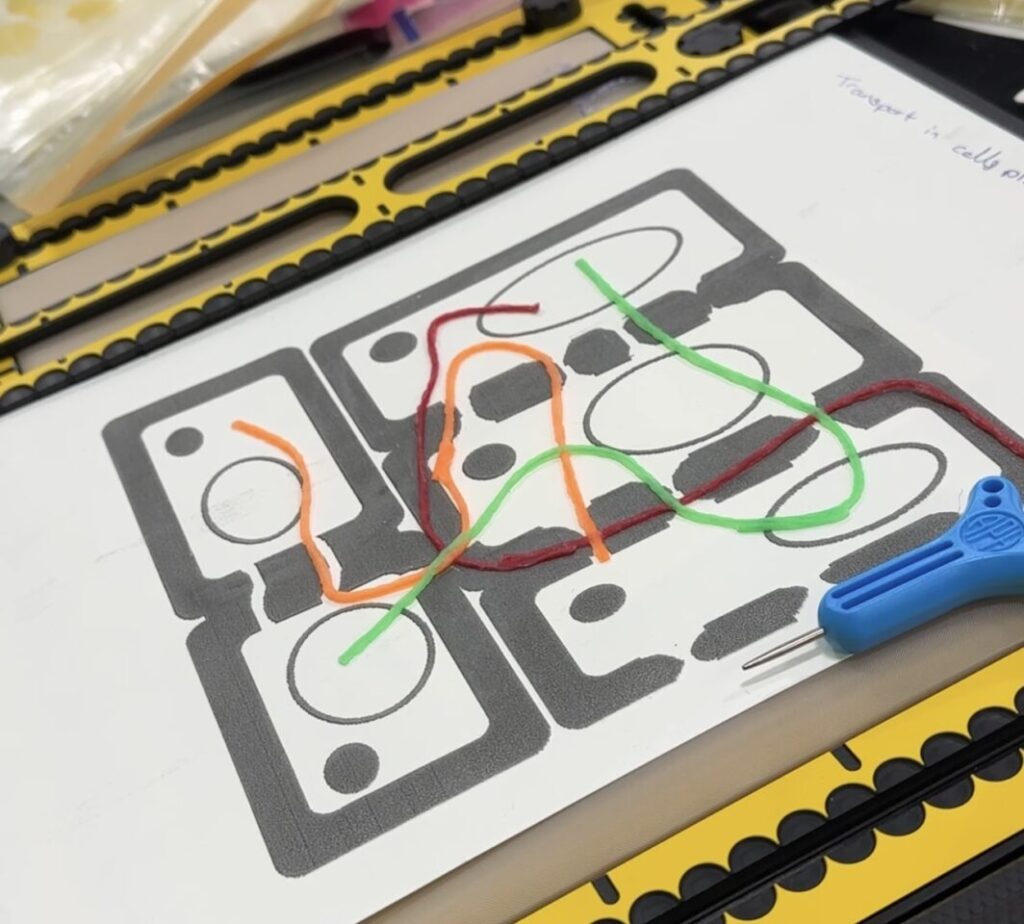
Create a community of practice for supporting disabled students using Slack and Google groups to help everyone connect with each other.
If you are interested in organising a workshop for your faculty or team, or can contribute in any way, please get in touch at digacc-support@york.ac.uk.
Many thanks to Alex Holland for photography. Find these images in UoY’s Brand site. Look under ‘assistive technology’.
Welcome to our new unit and our new blog site! We’re excited to have a specific team promoting Digital Accessibility at York, consisting of Lilian Joy and Alice Bennett. Both of us have been working in this area for a while under separate teams but we now form a unit under the Student Success area led by Jan Ball-Smith. Working with the E-accessibility Working Group, we hope to make an impact on the digital experience of students and staff at the university.
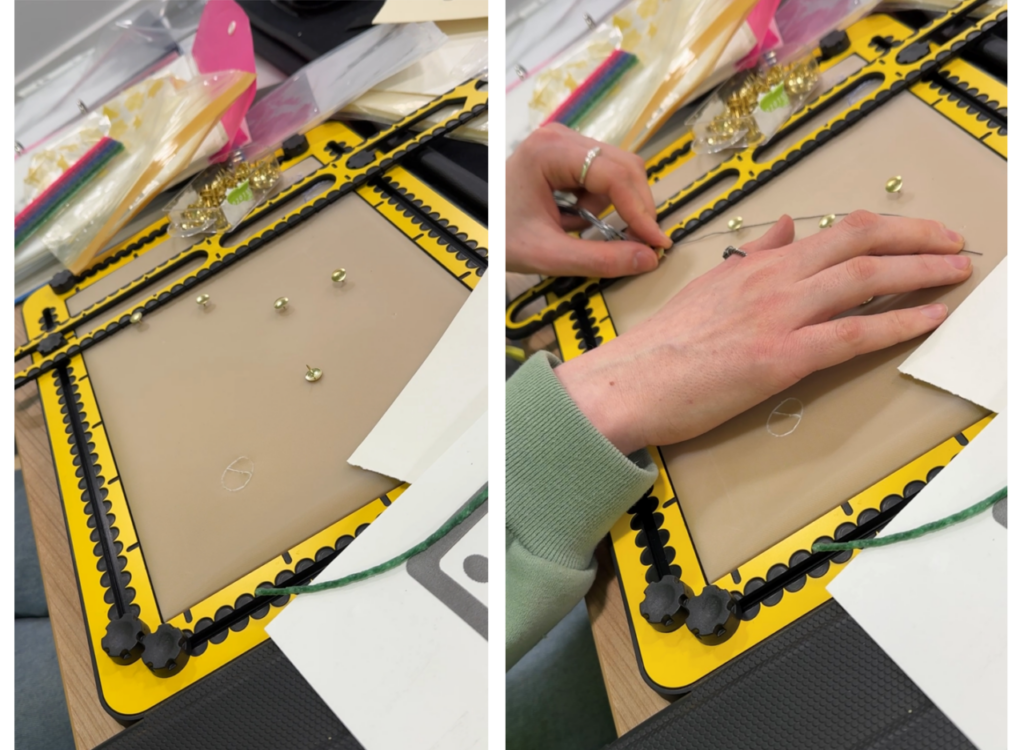
We’re off to a good start; one of the first things we did at the start of the academic year was to organise a workshop on Supporting Visually Impaired students (blog post coming soon). We’re busy developing resources from that workshop and will share these with all at the Uni. We’re planning to run a workshop on supporting students who screen magnify and supporting hearing-impaired students.
We have also set up a new Salesforce queue to help us manage student and staff queries. You can contact us at digacc-support@york.ac.uk.
We look forward to working with everyone. We’re here to help embed digital accessibility as a foundation of everything we create. Several teams already promote this ethos and expectation and we’re very grateful for the progress made at the University over the years, but we have more to do as standards and regulations change. Ultimately, this is to ensure nobody experiences any challenges with using the things we create as a University.
Progress transforms problems into invisible infrastructure.