

The Jisc Accessibility Community ran a Drop-In on the 1st October entitled ‘Braille Matters’. We had a very enlightening presentation by Elizabeth McCann from the Scottish Sensory Centre, introducing the history of braille and why it is still important despite the prevalence of digital technology. I was invited to give my perspective as a learning technologist working with vision-impaired students at my university and I did this by answering some questions which are detailed below.
The recording will available from Jisc’s Accessibility Community youtube channel – look for the recording from October 2025.
What led you to learn braille?
The first blind student I worked with was so good at braille I didn’t even think about learning it. Instead I focused on accessible maths or ways in which maths could be converted more easily into single line maths. With a braille display you only get one line of characters; you can’t access ‘laid out’ maths.
The second student I worked with wasn’t so confident with braille, but likewise needed to be able to do quite a bit of maths in her discipline. I really wanted to help her with her braille and screen reading technology. This led me to at least try to bridge that gap and it started me off learning as much as I can about braille.
It’s not the first time a student has explained to me that it can be hard to learn maths if you only listen to it; students find that having something tactile (braille and diagrams) can help them to revise better and engage more with the content. It helps for them to have multiple modes of representation, just like for sighted students. As they don’t have the use of their sight, having tactiles and braille is really important.
How did you get started?
I think I looked at tonnes of web resources and realised how much memorisation was going to be involved. So I found an app called Braille Academy on my iPhone and in a weekend I had mastered the alphabet. I highly recommend this app for learning the braille code by sight.
I was frustrated at not having any texts to practice with though. I went around looking at any available braille in public or on the web but was frustrated by how much I couldn’t yet decipher because I hadn’t yet encountered contracted braille at the start. Not all braille is spelt out like English words-contracted braille are like short forms of characters or words to help reduce the length of braille. For example we use eg to mean the word ‘example’. Braille has lots of things like that. This does mean that until you’ve mastered grade 2 braille, you can’t always understand braille texts that you come across.
This led me on to the UEB Online website where you can learn to type braille on a normal laptop, turning the letters sdf and jkl into the 6-dots on a braille machine. To explain, braille is normally typed using a 6-dot device like a Perkins brailler or on some braille device. This UEB braille fingering chart shows how characters are normally input with 6-dots and UEB Online’s guide to using the keyboard explains it in more detail.
On the UEB Online site, you can practice reading braille, converting that into text and converting text into braille. I’ve finished module 1 and I’m working on module 2. I’m also loving the Braille Decoded app on my phone for practising reading and typing braille.

So you can type braille with a normal keyboard?
You can type 6-dot braille with the sdf and jkl keys if you are using UEB online, or you can switch on 6-dot entry with some software like BrailleBlaster. With the NVDA screen reader, you can use an add-on called PC keyboard braille input and that let’s you use the sdf jkl keys to imitate the 6-dot entry that someone with a braille notetaker would use.
I just want to make it clear that you can’t type English text, change the font to something like SimBraille and then think that’s ok. This would just be a font change for a sighted person – it might be useful if you’re learning braille by sight, but it doesn’t do anything for your braille student. You might as well just give them the digital file in plain English as they will usually have the technology that handles the conversion to braille.
For text or maths to be converted into braille that can be embossed by a braille embosser or read on a braille display , there is a converter called the Liblouis translator. This conversion is built-in with a braille display, on an embosser or in software like BrailleBlaster. You don’t have to download it or do anything yourself except to choose what level of braille you want it to output. You can set it to convert to Grade 1 braille, Grade 2 braille and so on. So you can give students an accessible digital file and their braille reader will usually handle the conversion into braille code. PDFs are not accessible for braille readers, fyi!
If you don’t know the braille, can you look it up somehow?
There are quick reference charts like the Hadley chart or the Aroga braille reference sheet or the Duxbury braille reference sheet. But there is no easy way to look up braille dots digitally, which is frustrating. If I come across some new notation in braille when my student is doing their maths, I can’t just look up dots 4 5 6, 2 4 6 and work out what that is. I’ve tried using google search or even AI but this fails terribly, so I wouldn’t suggest believing anything they offer you. So I rely on the charts or the manuals but it’s not easy to find what you need when it’s not always laid out to help you find the code.

What’s the added challenge with maths and braille?
You can imagine what it’s like with the maths, even for sighted students, you have to get to know the various symbols, how they are laid out, how they are pronounced versus how the equation is read out. You have Greek letters and other symbols for vectors or differentials or matrices. Until you’ve learned that braille, you can’t ‘read’ the maths! And there are currently two different braille codes for maths. If you come from America, you’re likely to learn Nemeth Maths. In the UK we use UEB maths. So that’s another layer of ‘fun’.
In reality what works fastest for the learners I’ve worked with is for them or their transcriber to work with them to invent a way to represent new symbols. People suggest you could teach them latex since that is technically a single-line approach to describe the maths you want, but it makes it very unwieldy. You can’t just have a / for a fraction. You would have to read \frac which is about 6 characters in braille. When you only have about 40 characters available per line, it takes a lot of effort to remember everything in your head to visualise the equation, never mind then trying to solve it! Read more about this frustration written up by one of our graduates in An Accessible Maths Journey.
So do you think lecturers ought to learn braille?
It’s not necessary but it can be fun and it means you are showing an interest in the student’s way of working. I think it’s ideal if lecturers will co-create materials with the students so they can tell you what works for them. At a minimum, using the tactipad and a braille labeller can be easy for anyone to get started creating braille-labelled things. (See Prepare tactile resources if needed).
Can you tell us more about these tactile materials you’ve written blog posts about?
We encourage our lecturers to prepare tactile materials that can more easily explain complex charts or graphs. These can provide an alternative medium to understand concepts and it really is down to the preference of your learners as to what needs converting.
Previously we didn’t have a braille embosser so all content was either made tactile with a PIAF swell machine or by hand! See Creating tactile graphics for VI students part 1, part 2 and part 3. To help the lecturers understand how to work more accessibly with our VI students, I wrote a blog post about Preparing to teach our VI students and sent emails round to the lecturers. What continues to make me very happy and amaze me is how creative our lecturers can be when trying to make tactile graphics. The blog posts have several examples but the most recent example is a joy to behold; it’s fun to look at, great for textures and easy identification, and it has a number one on the top left so you can tell which way is up and which item it is in a series of 9 such diagrams! I hope they had a lot of fun making them because they were a real pleasure for our student to use in the lecture.
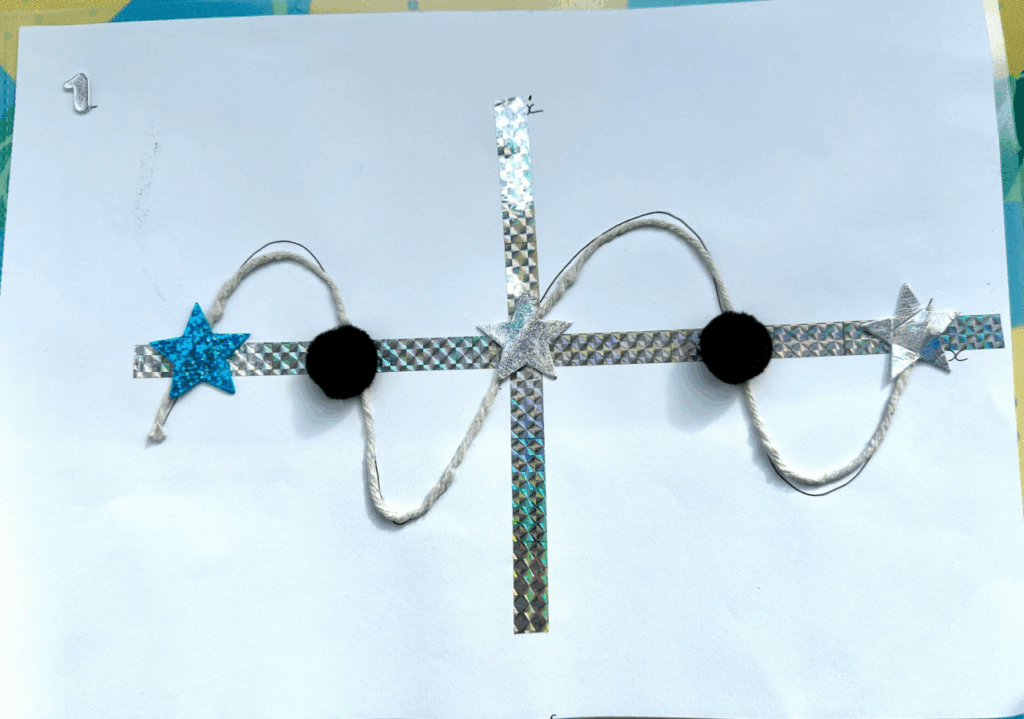
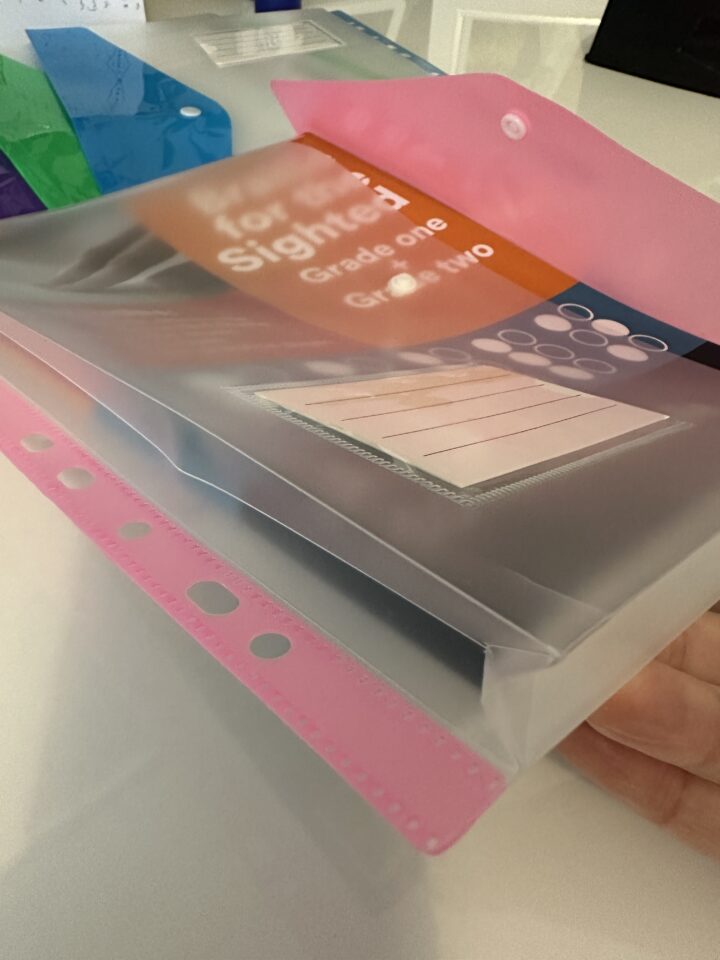
So the example above doesn’t have any braille labels on it, but the student can add these braille labels themselves or they can add a Penfriend label to record an audio description. (See Tools for creating tactile graphics). The only challenge with some of these tactile materials is storing them – they can be bulky to store or flatten over time if too much is piled on top of them. A student recommended these expandable hole-punched pockets to store their braille content. I haven’t found them in the stores, but I’ve managed to source some on Temu!
So you now have a braille embosser? Will that speed up the creation of tactile content?
Yes, we now have a SpotDot embosser but we’re still learning to use it, and we have an added challenge. Most HE will end up with using a networked computer to print to the embosser – this means you can’t get to the printer settings if you don’t have admin rights. We haven’t solved that one yet, but we’re getting by in the meantime. Once I have learned more, I’ll write it up on our blog!
We went for the SpotDot because some students have some sight and appreciate being able to see large fonts or colours on the page as well as being able to feel the braille or embossed patterns. It’s also useful to have print on any embossed material so peers or helpers can understand what’s on the page.
The embosser is going to help us produce more professional looking resources for our students – I think I’ll miss seeing the creative outputs from our lecturers so I hope it will be a blend between the two. It’s also going to be great resource for our students who don’t always have a way to print their own notes out from their braille reader. Now they can emboss multi-line reference material to refer back to easily.
One of our students have their own Index V5 embosser so I’ve had to get to grips with that as well. It’s always good to learn something new!
Do you have any examples of how your students are using braille creatively?
My current student taught me about the braille slate (See Tools for creating tactile graphics) and I’ve been using mine to emboss labels on diagrams, but I was blown away by her weekly planning board in braille. It’s a cork board and there are braille labels for each day, arranged to remind her of the structure of the day. Things like ‘study’ or ‘lunch’ are timeboxed in there. Fixed labels have flat drawing pins and other labels have push pins. It’s an amazing example of her creativity that she can invent something she needs. I take for granted my ability to make notes in my bullet journal to help organise my week or my thoughts and this is how our student has created a similar tool for herself. What an inspiration!

What’s next?
We now run regular workshops for staff on creating tactile materials and we’ll be showcasing the equipment that we have to help them with this. Our students come along to the workshop and it can be a really good exchange and very educational! (See Reflections on our Supporting visually impaired students workshop).
I’ve been learning more about screen readers and braille readers and how to teach these skills as well through a great site called Eye.T Vision.
I’m going to continue on my braille learning journey. There isn’t a formal course that I can go on to become qualified without having to pay out a lot of fees myself, so for the time being, I’ll just carry on with the UEB Online courses and certificates. I am learning a lot from working with our braille users so I feel very privileged to be able to learn directly from and with them. I would happily run a beginners braille workshop for a bit of fun – it would give me an excuse to bring out my Lego braille bricks and other bits of kit I’ve been accumulating – learning braille can be a gateway to spending all my money exploring all the tools and technology that can help blind people!
One thought on “Braille Matters”
Comments are closed.